The manual.
Zoosh 1.0 beta for Mac. Every screen, setting and key, in the app's own words.
New to Zoosh? Read the first six parts, then make a trade on the Practice account. Nothing there can cost you anything. The rest is here for when you need it.
01Getting started
Zoosh runs on macOS 14 or later, on Apple silicon or Intel. It is free while it's in beta, and on pretend money only: Zoosh's own Practice account and Alpaca paper accounts. Real money isn't switched on yet.
- Download it from the Zoosh page. It is signed and notarised by Apple.
- Open the zip and drag Zoosh into Applications, then open it from there.
- Take the tour. Five slides: Welcome, Two modes, The chart, Four ways to trade and Start safe. return ⏎ or → goes on, ← goes back, esc skips it.
- Read the terms. The Terms of Use, the Risk Disclosure and the Privacy Policy, in full. I agree (return ⏎) opens Zoosh; Quit Zoosh (⌘Q) leaves without agreeing.
- Start on Practice. Zoosh opens on its Practice account: $25,000 of pretend money, 20 AAPL and 10 SPY, and made-up prices on your Mac. Nothing you do there reaches a real account.
The tour and the terms are always there again: Help › Zoosh Tour and Help › Terms, Risks and Privacy, or Settings › View › Show the tour again and Read the terms.
02The screen
Everything is on one screen. On the left, your watchlist, with what you own under it. In the middle, the chart. On the right, the ticket for a new trade, with what you've done under it. Across the bottom, the biggest movers and the news.
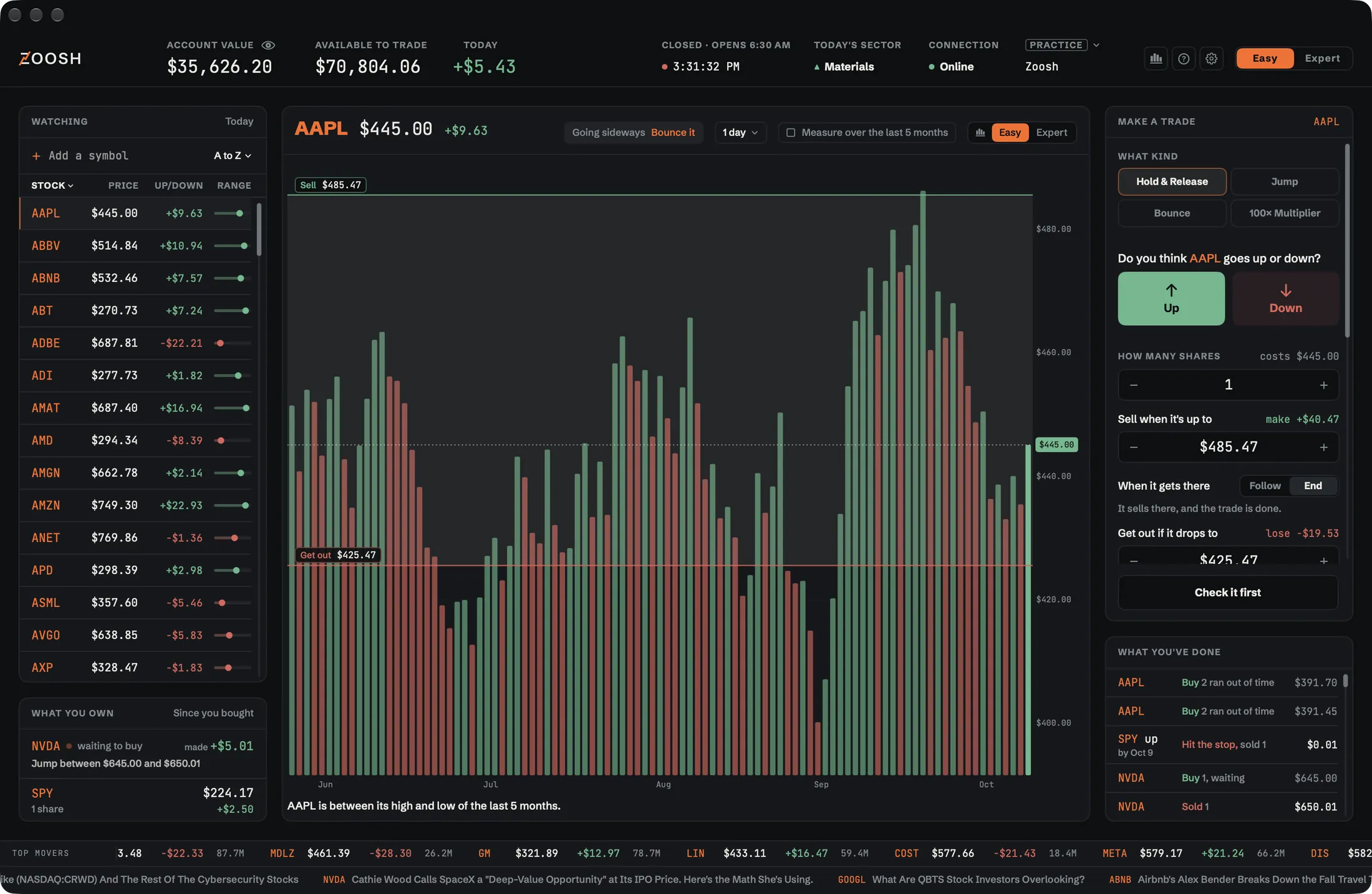
Across the top
- Account value
- Your cash plus what everything you own would sell for right now.
- Available to trade
- How much cash you can put into new trades right now, with nothing borrowed from your broker.
- Today
- How much the whole account has gone up or down since the market closed yesterday.
- Leading sector
- The group of stocks doing best today, like Tech or Energy. Click it to see every group.
- The market's clock
- Your time, and whether the market is open. US stocks trade 9:30 to 4:00 New York time on weekdays, except holidays, whatever your Mac's time zone. A bell rings at the open and the close.
- Connection
- Green and Online means prices are updating; red and Offline means the connection dropped, and the message on screen says why. Expert says how it's going: Stable, Slow (a read took 3 seconds or more), Unstable (one failed in the last 5 minutes) or Lost.
- Your account
- PRACTICE or PAPER: which account your trades go to. Click it to switch accounts or add another.
- The buttons
- Easy or Expert, your trading stats, Explain mode, Settings, and Hide the numbers.
Explain mode
Press ⌘/ or the explain button, then rest the pointer on anything to see what it does. Click the button again to turn it off. Every description on this page comes from it.
Hide the numbers
⇧⌘H, or Zoosh › Hide the Header Numbers, hides your account's money in the header, for when someone can see your screen. Your trades aren't changed.
03Easy and Expert
Easy asks plain questions and does the jargon for you: whole shares only, every amount in dollars, and a sell price and a stop on every trade. Expert is the full trading screen: candles with studies, every order type, stocks and options. ⌘1 and ⌘2 switch from anywhere. Switching changes the whole screen, the chart too, and nothing about your account.
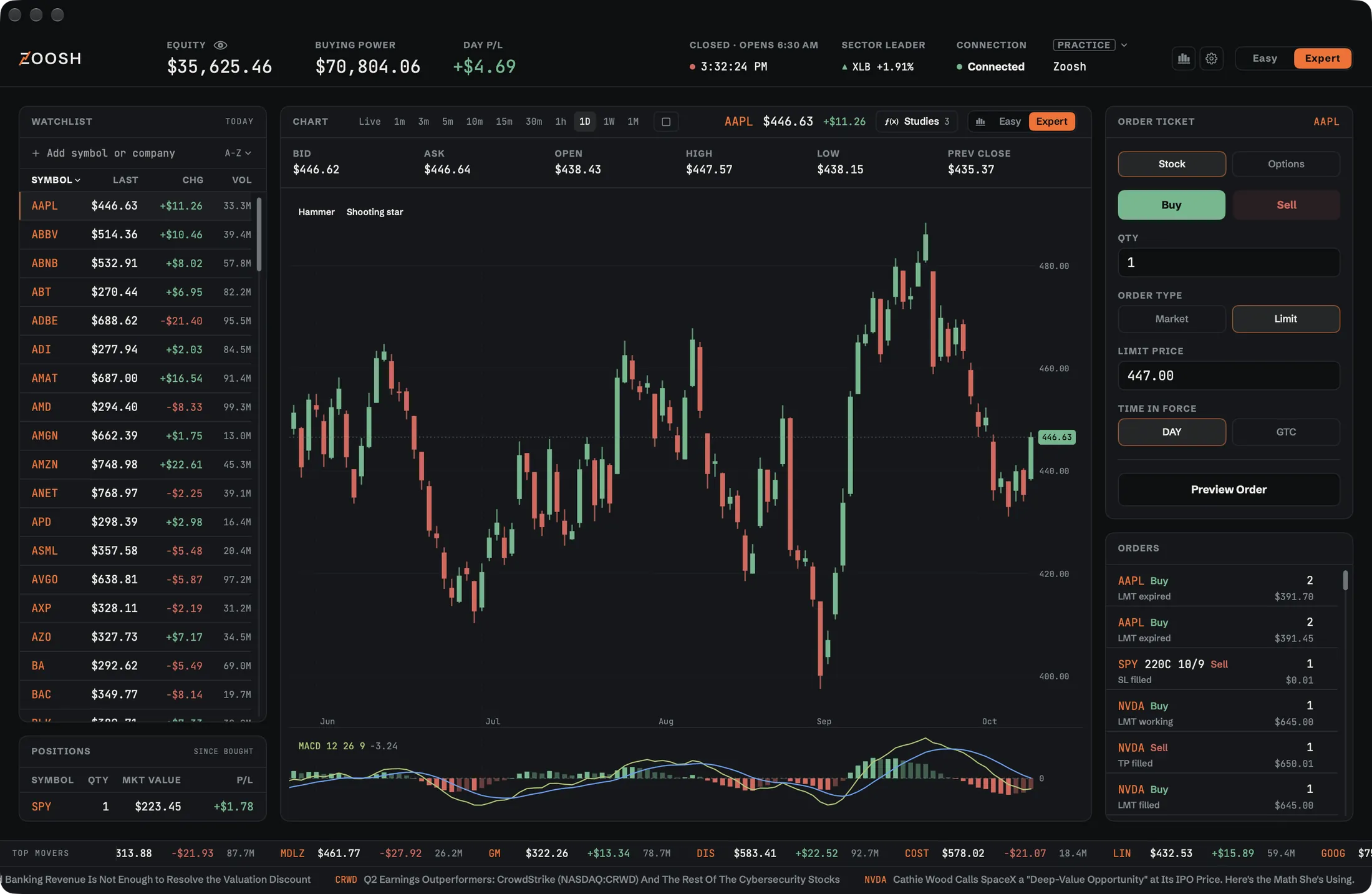
Same figures, different words:
| Easy | Expert |
|---|---|
| Account value | Equity |
| Available to trade | Buying Power |
| Today | Day P/L |
| What you own | Positions |
| What you've done | Orders |
| Stock | Symbol |
| Price now | Last |
| Buyers offerSellers want | BidAsk |
| Make a trade | Order Ticket |
| Only at my price | Limit |
| Until I cancel | GTC |
| By whenHas to beat | ExpiryStrike |
| Check it firstDo it | Preview OrderSubmit |
Never use one of them? Settings › View can switch off a mode or a chart, and its switch goes away.
04The watchlist
To add a stock, press ⌘L or click the add box. Type its symbol, like AAPL, or its company's name, like Apple, then press Return or click it in the list. Click a row to open its chart and trade it; ⌥↓ and ⌥↑ step to the next and the previous.
- Price
- What one share costs right now.
- Up or down
- How many dollars one share has gained or lost over the period shown at the top of the list.
- Range
- Where the price sits between its lowest and highest today, or over the chart's period when Snap is on. All the way right means it's at the high.
- Sort it. Click a heading: A to Z, by price, or by how much each one is up. Drag a row to put it in your own order.
- Remove one. Drag it onto the bin, or right-click it.
- Snap. Tick Measure over this period and every number on screen is measured over the stretch on the chart instead of just today, so the list and the chart tell the same story.
05The chart
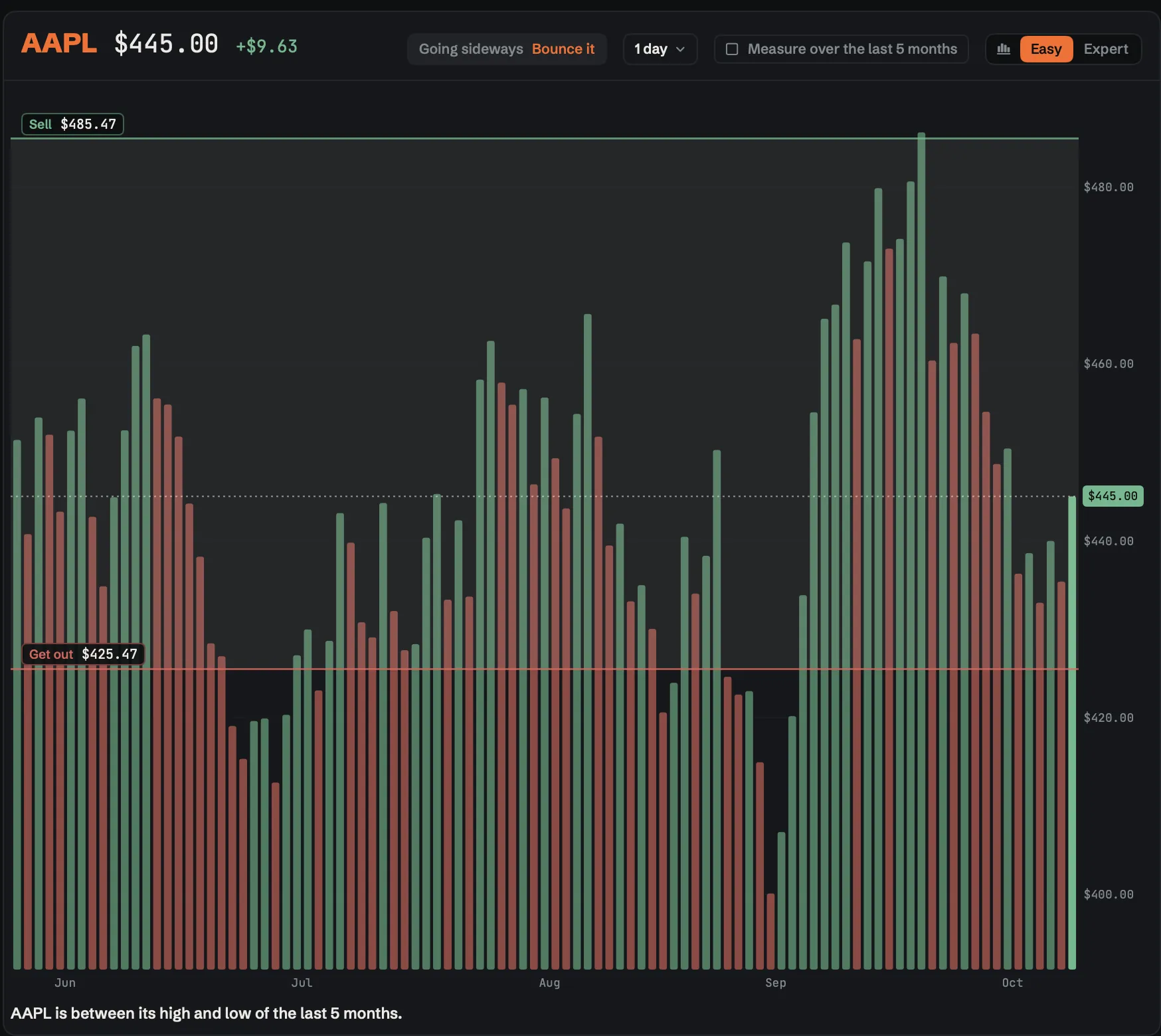
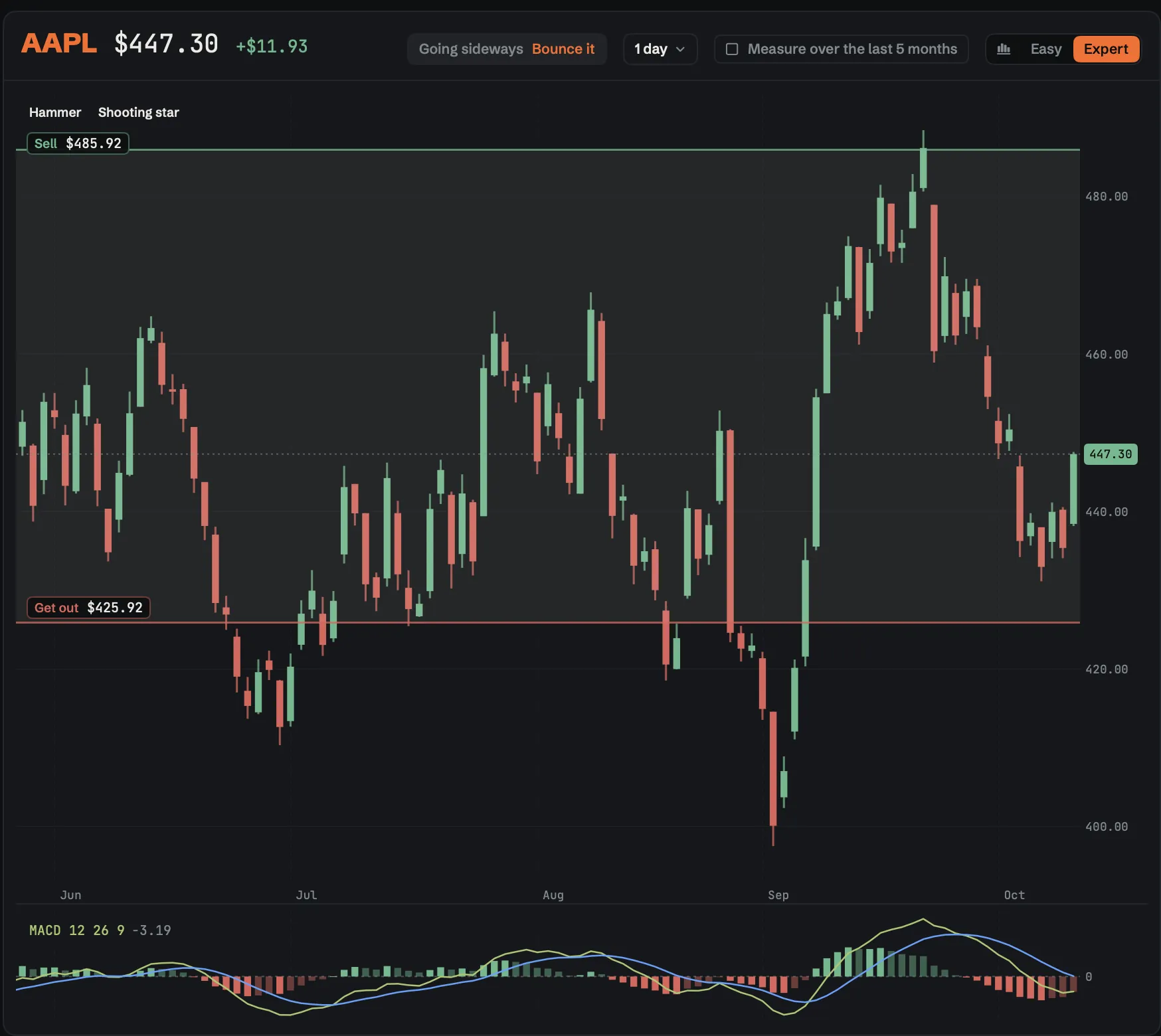
How much history sets how far back the chart goes and how much time each bar covers: Live (a new bar every second), 1m, 3m, 5m, 10m, 15m, 30m, 1h, 1D, 1W and 1M. ⌘] and ⌘[ step through them.
Reading it
- Easy's bars. Each bar is the price at the end of that stretch: green if it ended higher than the bar before, red if lower. Bars or a line joins them into one line instead. The dotted line is the price now.
- Candles. Each candle is one stretch of time, green if the price rose, red if it fell. The thick part runs from where it started to where it ended, the thin line from its low to its high. Chart style switches between bars and candles.
- The newest bar or candle moves with the price until its time is up.
Moving around
- Look back. Drag the chart, or press ← and →. Double-click it to come back.
- Stretch the prices. Drag up on the prices to spread them out, down to squeeze them together; ↑ and ↓ too. Double-click them to fit the chart again.
- Zoom the time. Drag left on the times for fewer, wider bars, right for more. Scrolling over the chart does the same. Double-click them to reset.
The lines on it
A trade's prices are drawn on the chart as lines you can drag.
- Exit lines
- Drag a line to move that exit: green is where you sell for a profit, red is where you get out.
- Follow line
- When the price gets here Zoosh doesn't sell: the get-out line moves up behind it and follows the price.
- Buy lineSell line
- The bottom and the top of a Jump or Bounce range.
- Top stopBottom stop
- Where a Jump or Bounce ends, or moves its lines if you chose Follow.
- Locked line
- While a bounce runs, the line is a live order at your broker, so it can't be dragged.
- What you paid
- What you paid for each share. Above it you're making money, below it you're losing.
- Sells hereGets out here
- Your sell and get-out orders, waiting at your broker. They work even with Zoosh closed. Drag one to a new price, then press Move it; nothing changes until you do.
06Making a trade
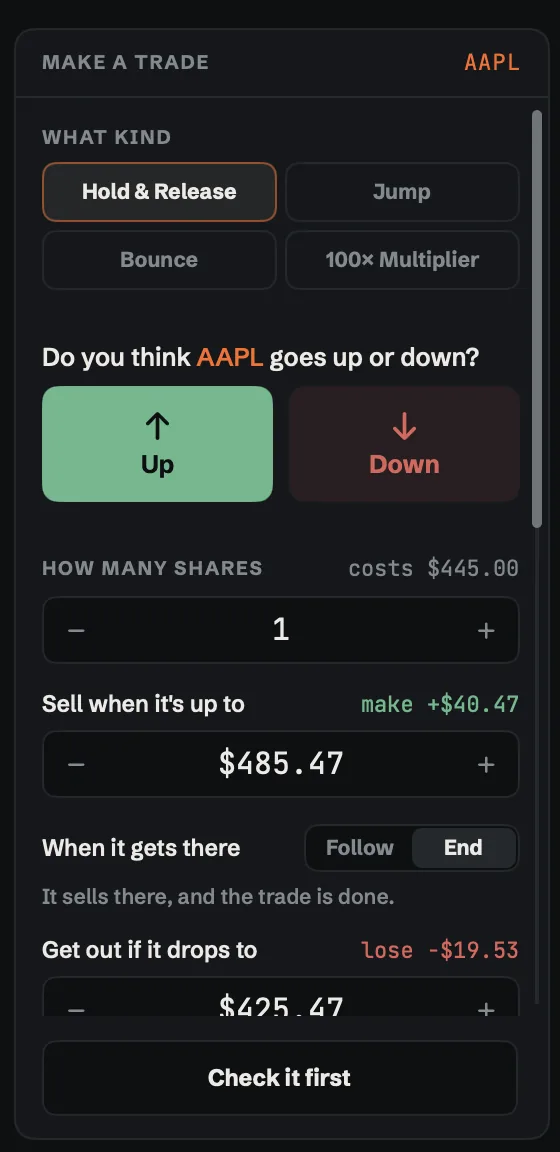
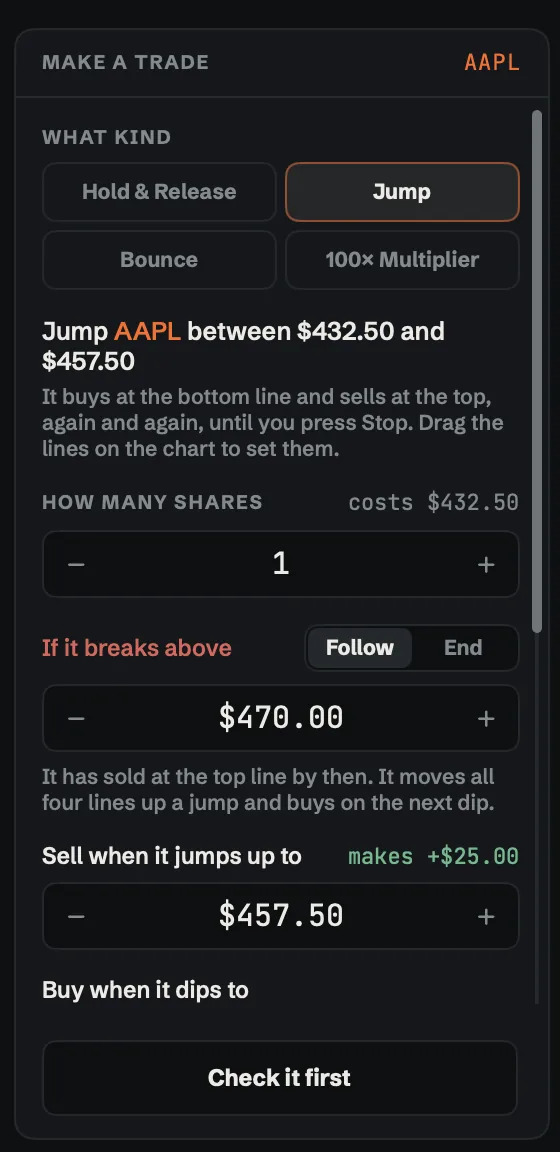
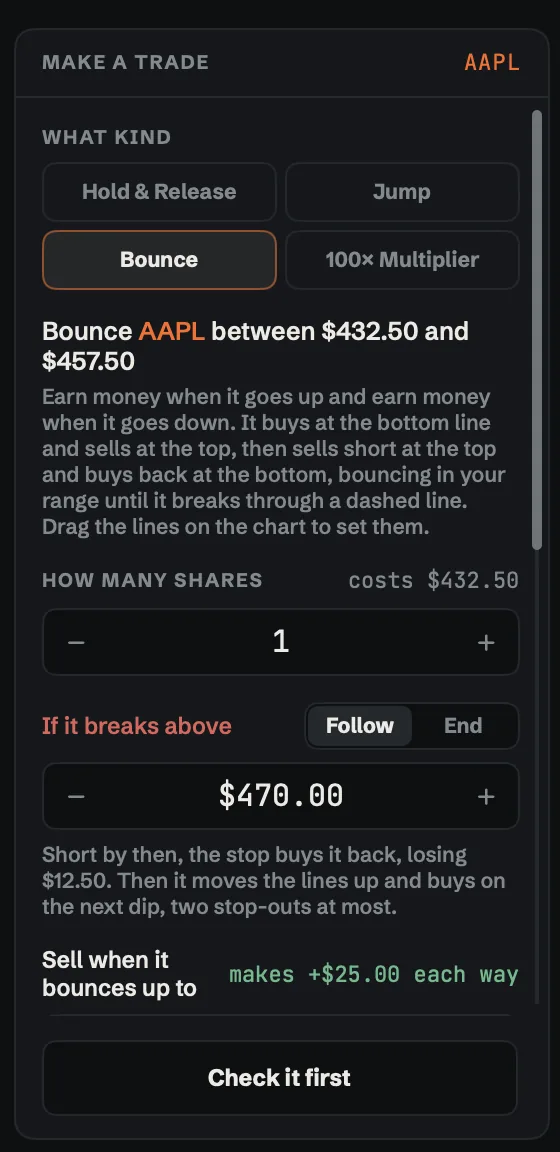
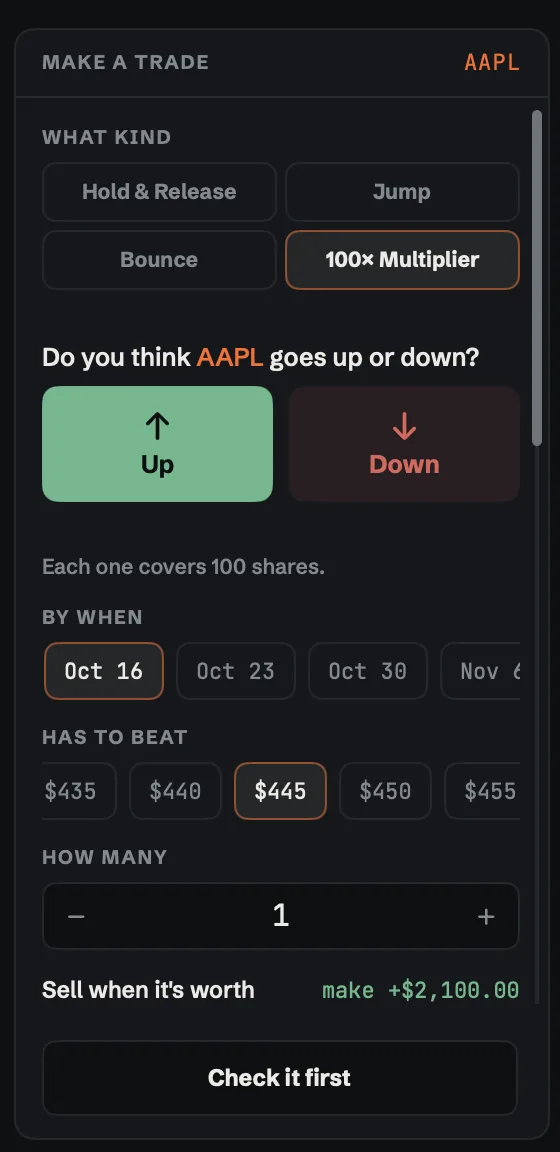
In Easy, Make a trade offers four kinds. Pick one and the ticket asks only what that kind needs.
Hold & Release
Buy shares now and sell them later. You set where it sells and where it gets out, and both are placed for you.
- UpDown
- Up: you think the price rises. Down: you think it falls, and Zoosh sells short, selling shares you borrow and buying them back later. Down loses if the price rises instead.
- How many shares
- Whole shares only. What they cost is shown beside it.
- Take the profit
- The price Zoosh sells at to lock in your gain. The dollars beside it are what you'd make.
- Safety exit
- If it goes the wrong way to this price, Zoosh sells so the loss can't keep growing.
- When it gets there
- End sells at your price. Follow lets it run: the get-out price follows the price a gap behind its best, and it sells when the price turns back by the gap shown. Zoosh has to be open when it first gets there.
- Hold it long term
- Ticked, your exits stay until they're hit or you cancel them. Unticked, they end when the market closes today.
100× Multiplier
Costs a fraction of 100 shares but moves like 100 shares. It has a deadline: if the stock isn't past your price by then, it's worth nothing. You never end up owning the shares: Zoosh sells one still held on the morning of its last day, while it's open.
- By when
- The deadline. Further away costs more but gives the stock longer to get there.
- Has to beat
- The price the stock has to get past for this to pay off.
- How many
- Each one moves like 100 shares.
Coins
On an Alpaca account, a coin such as BTC/USD gets its own ticket. How much to spend is in dollars, and buys as much of the coin as that money gets, often a small part of one. Coins are Up only: bought now and sold later, so they pay when the price goes up.
Check it first, then Do it
- Here's what that means. Zoosh works out the cost, what you could make and what you could lose before anything is sent.
- Zoosh's read. How realistic your target is, judged on how far this stock usually moves. It is information, not advice.
- Check it first (⌘↩) shows exactly what will be sent. Do it (⇧⌘↩) sends the order to your broker, exits included. Back (⎋) lets you change your answers; nothing has been sent.
No key sends an order on its own. Do it only acts while an order is already on screen, checked.
07Jump and Bounce
Jump is for a stock going sideways: Zoosh buys near the bottom of your range and sells near the top, over and over, until you stop it. It earns on the way up. Bounce earns on the way up and on the way down: it buys at the bottom and sells at the top, then sells short at the top and buys back at the bottom, until the price breaks through the outer stop lines you set.
Setting one up
- If it breaks above
- Where the price has run off upward. End: it stops. Follow: it moves all four lines up and keeps going. Bounce buys back any short here first.
- Sell when it bounces up to
- It sells here every time and keeps the difference. Bounce also sells short here. The dollars beside it are what one trip makes.
- Buy when it dips to
- It buys here every time the price dips back down. Bounce also buys back its short here.
- If it drops below
- It always sells any shares it holds here. End: it stops. Follow: it moves the lines down and tries again, twice at most.
Check it first shows the whole plan in one sentence. Start places the first order at your broker; from then on it runs by itself until you stop it.
Selling short can lose more than you put in. Bounce shows what a stop-out would lose before you start, and won't run on a stock you already own. Jump and Bounce place each next trade themselves, so they need Zoosh open, your Mac awake and you online.
While it runs
It shows in the list on the left as running on its own. Click it to see How it's going (its trips, what they made and what it holds now), Its lines (orders at your broker, so they can't be moved) and What it's done, newest first.
Stop stops it. If it holds shares or a short, you choose next:
- Close now
- Cancels its orders and closes what it holds at the market price: sells the shares, or buys back the short.
- Keep it
- It stops trading, but what it holds keeps its exit and stop orders at your broker.
- Keep going
- Changes nothing: it carries on.
A finished one says why it ended, how many trips it made and what it made in all. Done clears it off the list; its trades stay in your stats.
08What you own and what you've done
Click something you own to open it: what you paid, what it's worth now, its exits, and a button to sell it. Its exits says where it sells at a profit and where it gets out; Not set means nothing will sell it on its own.
- Sell now
- Cancels its exits, then sells at the market price. On a bet that it falls, this buys it back.
- Sell half
- Shows what half would bring first. Its exits go back on the half you keep.
- Move it
- Moves its exits to the prices you dragged or stepped them to. Nothing is sold.
- Done
- Closes this and goes back to a new trade. Nothing changes.
Nothing is sent until you confirm. What you've done lists every order you've sent and where it got to. Click one to see all of it: where it got to, its price, what it came to and when, the exits that ride on it, and Cancel it while it's still waiting. Anything that already went through stays.
Stop everything
⌘. stops every Jump, Bounce, Follow, bot and waiting entry order at once. It asks first, and nothing stops on the key alone. Stop leaves what you own with its exits; Stop and Sell Everything (in Expert, Stop and Flatten) also cancels every order and sells it all at the market price.
09The Expert ticket
Expert has the full order ticket for stocks and options.
- Side
- Buy or Sell.
- Order type
- Market, Limit, Stop, Stop Limit, or Trailing: a set number of dollars behind the price.
- Time in force
- Day, GTC or IOC.
- Options
- Open the chain and click a bid or an ask.
- Take profitStop loss
- On a new trade, a bracket: they go in once it fills, and one cancels the other. On shares you hold, an OCO that sells at whichever comes first; both prices are needed.
- Extended hours
- Limit orders only: 4:00 to 9:30am and 4:00 to 8:00pm New York time.
Preview Order shows what will be sent; Submit sends it.
10Alerts, movers and news
- Price alerts. Right-click the chart at a price to be told when the stock gets there. They are listed, and removed, under Settings › Notifications.
- Biggest movers. The big companies moving most right now. It pauses while you point at it; click one to open it.
- News. Headlines about the stocks you watch, from Yahoo Finance's public news feed. It pauses while you point at it. Click the symbol to open its chart, or the headline to read the story.
11Your stats
⌘D, or the stats button, swaps the trading screen for your record: what you made or lost and the line of how it got there. How far back picks the stretch the whole page covers, from today back to your very first trade. Click the button again to get back to trading.
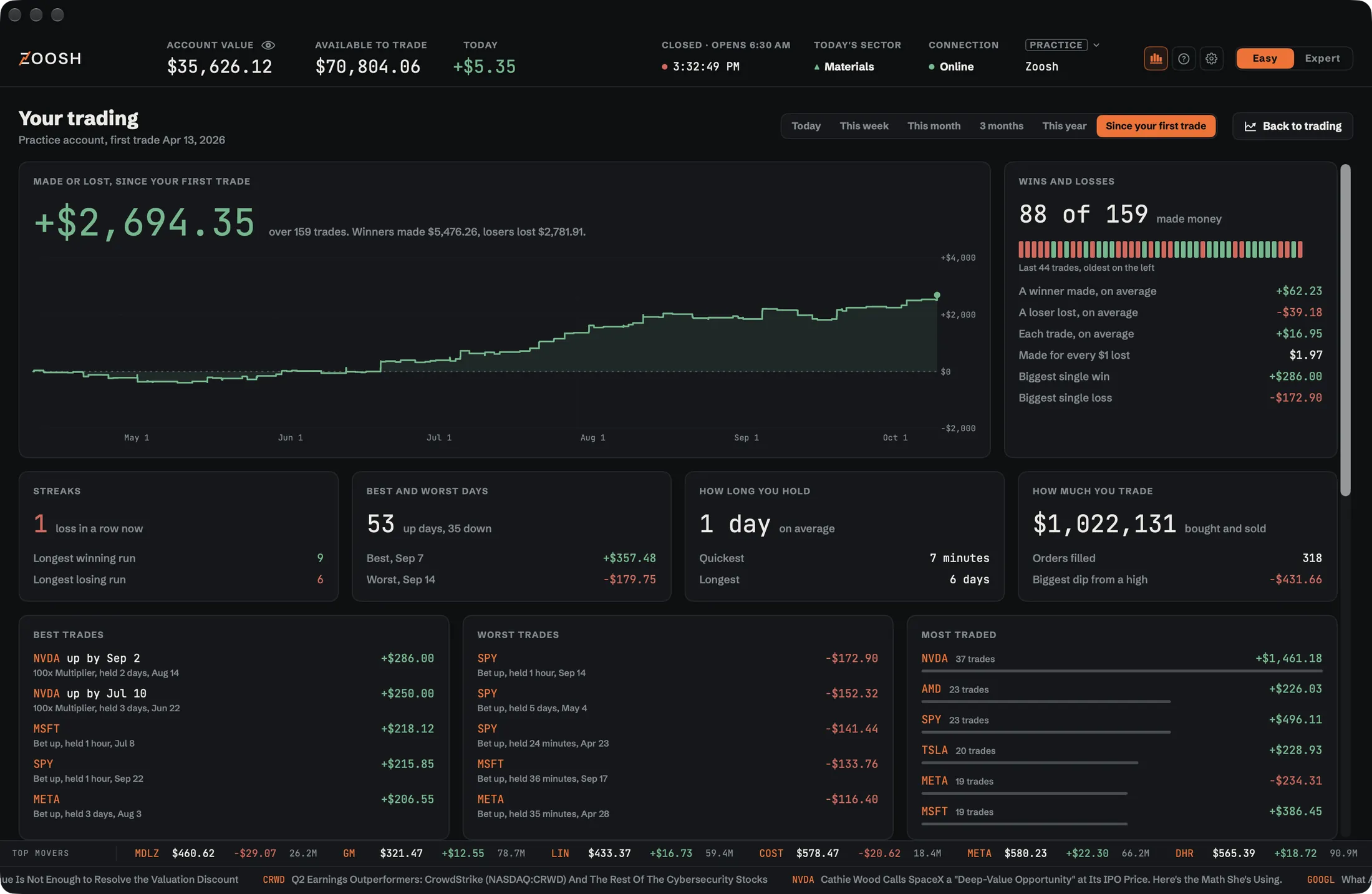
- Made or lost, wins and losses, streaks, and your best and worst days.
- How long you hold, and how much you trade: dollars, fills, and the biggest drop from a high point.
- Your five best and five worst trades, and what you trade most.
- A day-by-day calendar, and when you do best, by weekday and by hour.
- Which way and which kind: a bounce's trades count under Bounce.
- Every buy and sale, with Export CSV.
Right-click any stock in it to chart it.
12Settings
⌘, or the gear opens Settings. It has nine panes.
Account
Choose your brokerage, add or switch accounts, and reset the Practice account. See Brokers and accounts.
Shortcuts
Click a key, then press the new one. Esc gives up, Delete clears it. Restore the defaults puts them all back. The defaults are in Keyboard shortcuts.
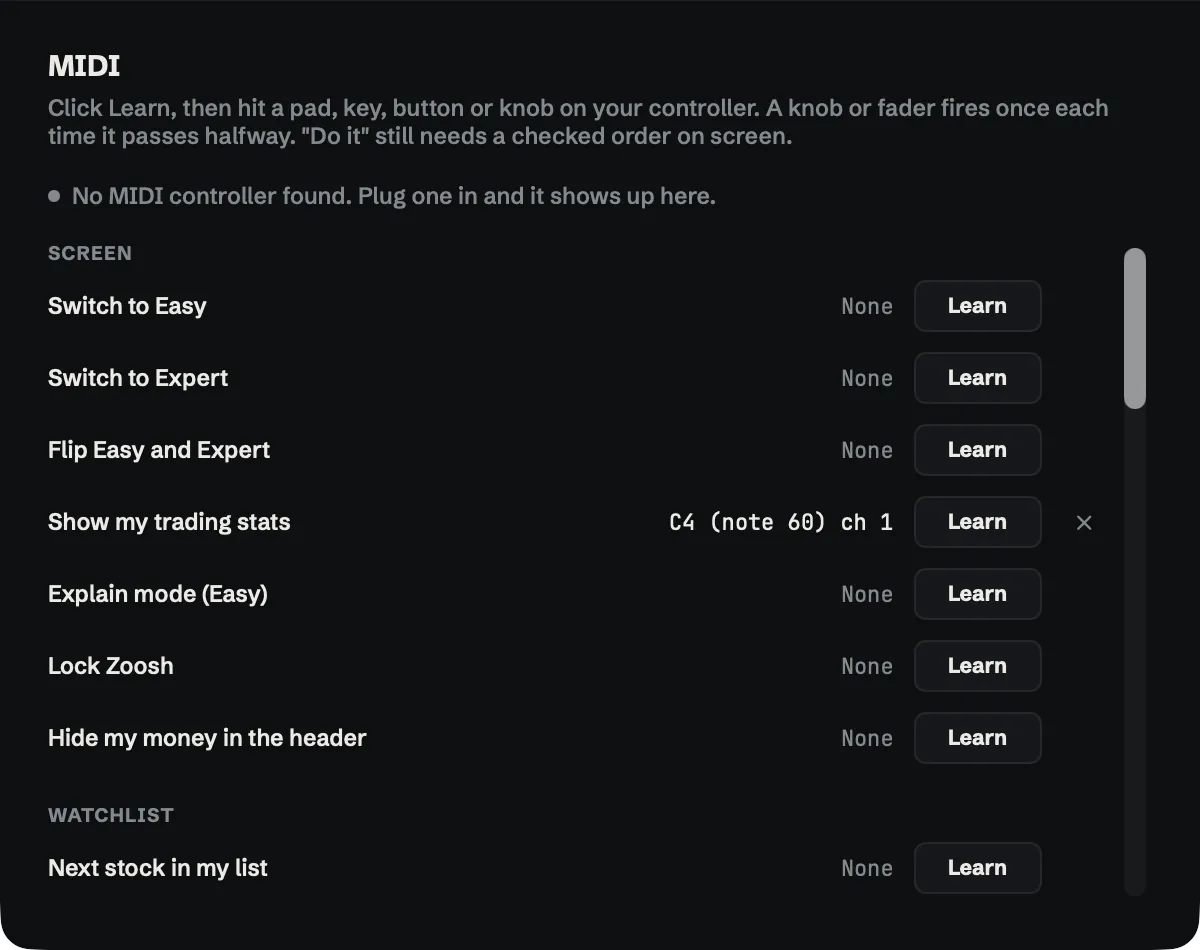
MIDI
Put any action on a pad, key, button or knob of a MIDI controller. Click Learn, then hit it on the controller. A knob or fader fires once each time it passes halfway. Plug a controller in and it shows up here.
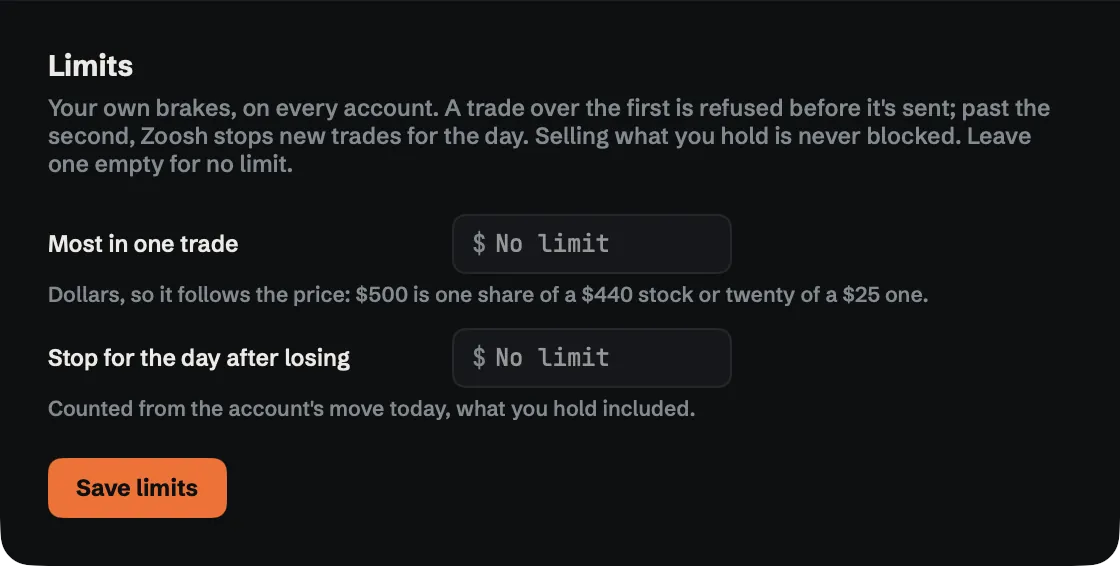
Limits
Most in one trade, in dollars, and Stop for the day after losing, counted from the account's move today, what you hold included. Past the day's loss, new trades stop until tomorrow. They start at a quarter of the account for one trade and a twentieth lost in a day. Leave a field empty for no limit. Selling what you hold is never blocked.
Sounds
Play sounds, Ring the market bells and Click as you work, with a level for each sound, or load your own.
Notifications
Mac notifications show only while Zoosh isn't in front. Choose the kinds: orders that fill, sell prices and get-outs hit, bounces, the Multiplier and Follow, something that needs you, a lost connection, and price alerts. Your price alerts are listed here too. Open System Settings if macOS has them switched off.
View
Switch off a mode or a chart you never use: Easy mode, Expert mode, the Easy chart, the Expert chart. One of each has to stay on. Each mode opens on picks the chart each mode starts with, so Easy can open on the Expert chart. Getting started has the tour and the terms.
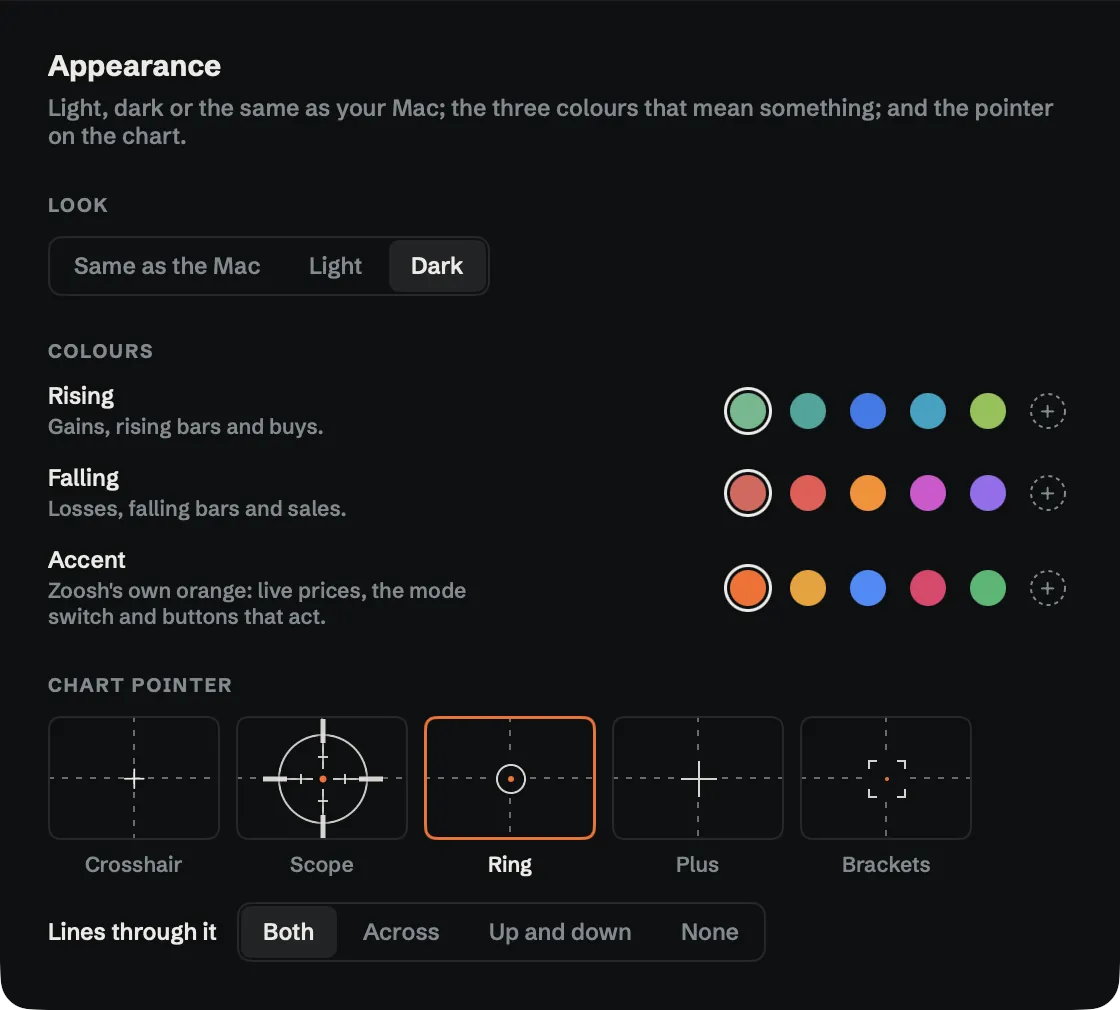
Appearance
Same as the Mac, Light or Dark. The colours for rising, falling and the accent: Zoosh's own, or any colour. And the chart pointer: none (the Mac's own), a crosshair, a scope, a ring, brackets, a bull or a bear, with lines through it across, up and down, both or none.
Security
- Opening Zoosh
- Ask for Touch ID or the Mac's password. Zoosh keeps no password of its own.
- Esc key
- Lock, or Nothing. Esc still backs out of a checked order first, and clears the add box while you're typing in it.
- When you're away
- Lock, or Nothing, after 1, 2, 5, 10, 15, 30 or 60 minutes. And lock when the Mac sleeps or locks its screen. Lock now locks it at once.
13Keyboard shortcuts
The defaults. Change any of them in Settings › Shortcuts; everything else has no key until you give it one.
| Key | Does |
|---|---|
| ⌘1 ⌘2 | Easy, Expert |
| ⌘D | Your trading stats |
| ⌘/ | Explain mode |
| ⌘, | Settings |
| ⌘L | Add a stock |
| ⌥↓ ⌥↑ | Next stock, previous stock |
| ⌘] ⌘[ | Next period, previous period |
| ← → | Earlier, later on the chart |
| ↑ ↓ | Higher, lower on the chart |
| ⌘↩ | Check it first |
| ⇧⌘↩ | Do it, while a checked order is on screen |
| ⎋ | Back |
| ↩ | Approve a bot's order |
| ⌘. | Stop all, after asking |
| ⇧⌘L | Lock Zoosh |
| ⇧⌘H | Hide the numbers |
Do it only works when an order is checked and on screen, so no key can trade by accident.
14Brokers and accounts
Your money and shares stay at your broker, in your account. Zoosh is software that shows your account and sends the orders you place, through your broker's official API. Settings › Account › Choose your brokerage:
- Practice
- Zoosh's own pretend account on your Mac. No sign-up.
- Alpaca paper
- Pretend money at Alpaca, with real prices. Alpaca gives anyone a paper account when they sign up.
- Charles Schwab
- Built, and waiting on Schwab's approval of Zoosh's API access.
- Coming in Zoosh 2.0
- E*TRADE, Interactive Brokers, tastytrade, Webull and Tradier, depending on each broker's API terms and approval.
Connect an Alpaca paper account
- Sign up at Alpaca and open its paper dashboard.
- Under API Keys, generate a key.
- In Settings › Account, choose Alpaca paper and paste both parts: the API Key ID (it starts with PK) and the Secret Key (the longer one).
- Press Save and connect.
The keys go straight into your Mac's Keychain and are never shown again. Add another Alpaca account takes a second set and a name, like Paper 2. Switch between accounts with the account tag at the top. Replace keys swaps a set; Remove for good takes the account off this Mac.
Start Practice again
Reset practice account clears every practice trade and starts again with $25,000, 20 AAPL and 10 SPY.
15Bots
Connect a script you wrote, or an AI agent running in its own app, and it trades your paper account through Zoosh. You see every step it takes, and nothing it sends gets past the limits you give it.
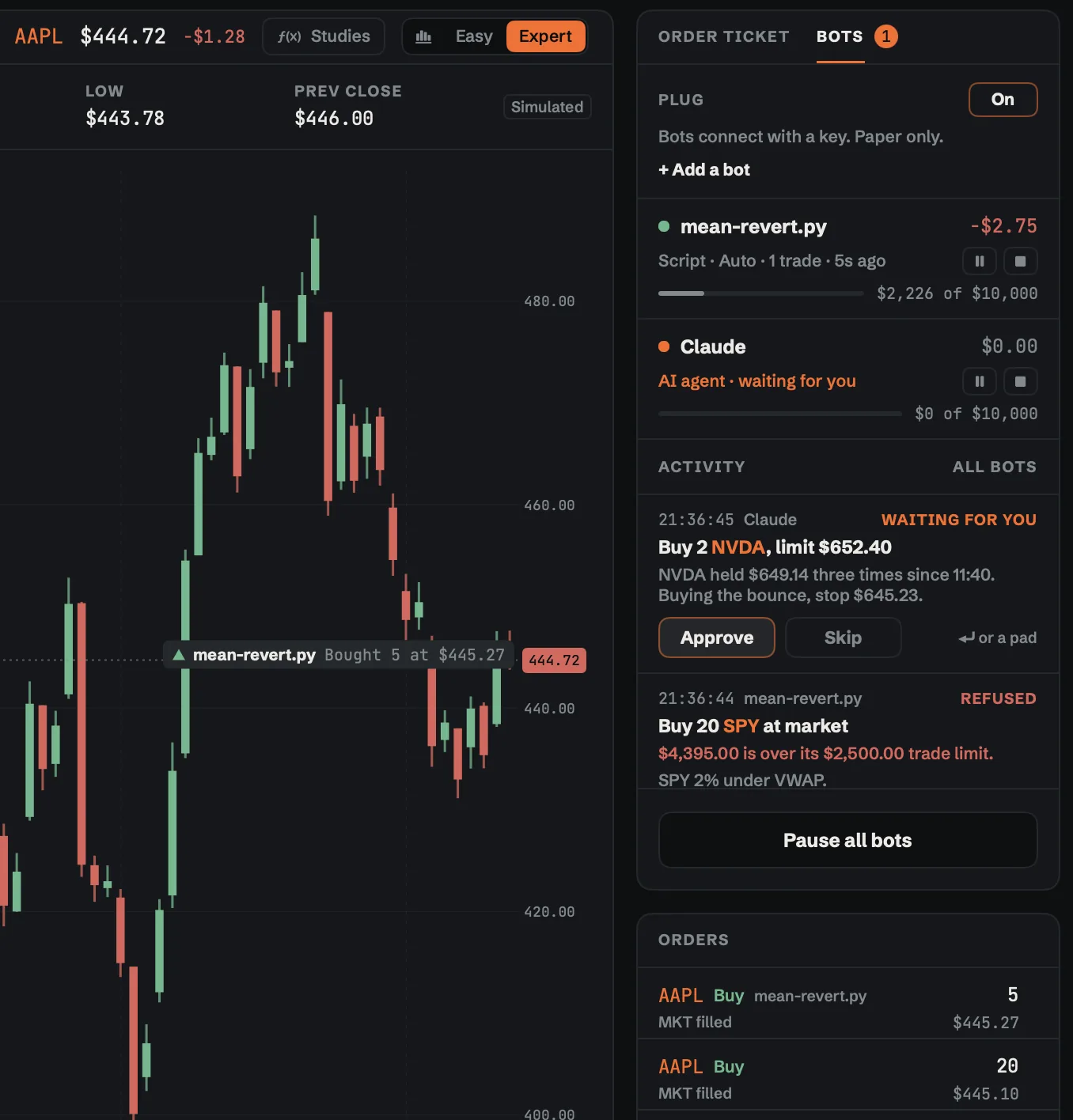
- A key each
- In Expert, open Bots and click Add a bot. Zoosh makes it a key. Scripts call a small local API; AI agents connect over MCP.
- Runs it for you
- Pick a Python file and press Start: Zoosh runs your script, hands it a new key each run and shows what it prints. No Python on your Mac? Zoosh brings its own and can install the packages your script needs. Or start from Zoosh's example.
- Its account
- Practice or one of your paper accounts. It trades there whatever is on screen, so bots can run side by side.
- Its limits
- The most it can put in one trade and in one day, with your own Limits on top. Past them, the order is refused and the bot is told why.
- Ask first or Auto
- Ask first: each order waits for you, Approve or Skip, with a click, ↩ or a pad. Auto: it goes straight to your broker.
- Follow along
- Every order, refusal and note in Activity, each fill marked on the chart, and the bot's name on its orders.
- Stop it
- Pause one bot, or stop it and cancel its open orders. Pause all bots, or Stop all.
Bots are for paper accounts only, stocks and ETFs: no short sales, options or coins. They connect from this Mac only, while Zoosh is open. A bot can read your paper account's balance, positions, orders and prices, and where it sends them is up to the bot; Zoosh asks before the first one connects.
16Safety and the lock
- Practice first. Pretend money and made-up prices on your Mac.
- Your limits. The most in one trade, and a day's loss that stops new trades until tomorrow.
- Exits at your broker. Where your broker can hold them, your sell price and stop wait there, working even with Zoosh closed.
- Keys in the Keychain. Your broker sign-in stays in the macOS Keychain, never in a file and never on a server.
What keeps working with Zoosh closed
Orders already at your broker keep working there, including the sell price and stop it can hold for you. Jump and Bounce, bots, the Multiplier's sale before its deadline, Follow, and any exit your broker can't hold need Zoosh open, your Mac awake and you online.
The lock
Esc, ⇧⌘L, Zoosh › Lock Zoosh, sleep or stepping away locks Zoosh, as you set it in Settings › Security. Touch ID or your Mac's password opens it again; there is no Zoosh password to steal.
Locked, Zoosh shows the day's market map, the S&P 100 sized by dollars traded, with the market, what's up and down, the sectors and the biggest moves, and the tickers along the bottom. It keeps watching your exits, bounces and alerts. Open Zoosh unlocks it.
17Your data
Zoosh has no server. Your account, settings and history stay on your Mac, and the app talks straight to your broker.
- Balances, positions, orders, history, your watchlist and the Practice account are stored on your Mac. We never receive them.
- Orders and account requests go from your Mac to your broker, and quotes come back from your broker's data service. None of it passes through us.
- Headlines come from Yahoo Finance's public news feed, for the symbols you follow.
- No analytics, no tracking, no crash reporting tools and no ads in the app. We never sell or share your information.
The Privacy Policy says exactly what leaves your Mac and where it goes.
18Updates and help
Zoosh tells you when a new build is out and installs it when you say so. To look now, choose Check for Updates… in the Zoosh menu.
- Help › Zoosh Tour plays the tour again.
- Help › Terms, Risks and Privacy opens the terms. They are also on this site: Terms of Use, Risk Disclosure and Privacy Policy.
- More answers are in the questions on the Zoosh page.
- Anything else: write to info@turbograffix.com. It goes straight to the people building Zoosh.
Zoosh gives no investment advice, recommendations or signals. You choose the stock, the direction, the size and the prices. Trading can lose money, and selling short can lose more than you put in: the Risk Disclosure explains each risk in plain words.
Ready to try it? Free, on pretend money only.
Get the beta