
A Mac app for trading your own brokerage account
Trading Simplified.
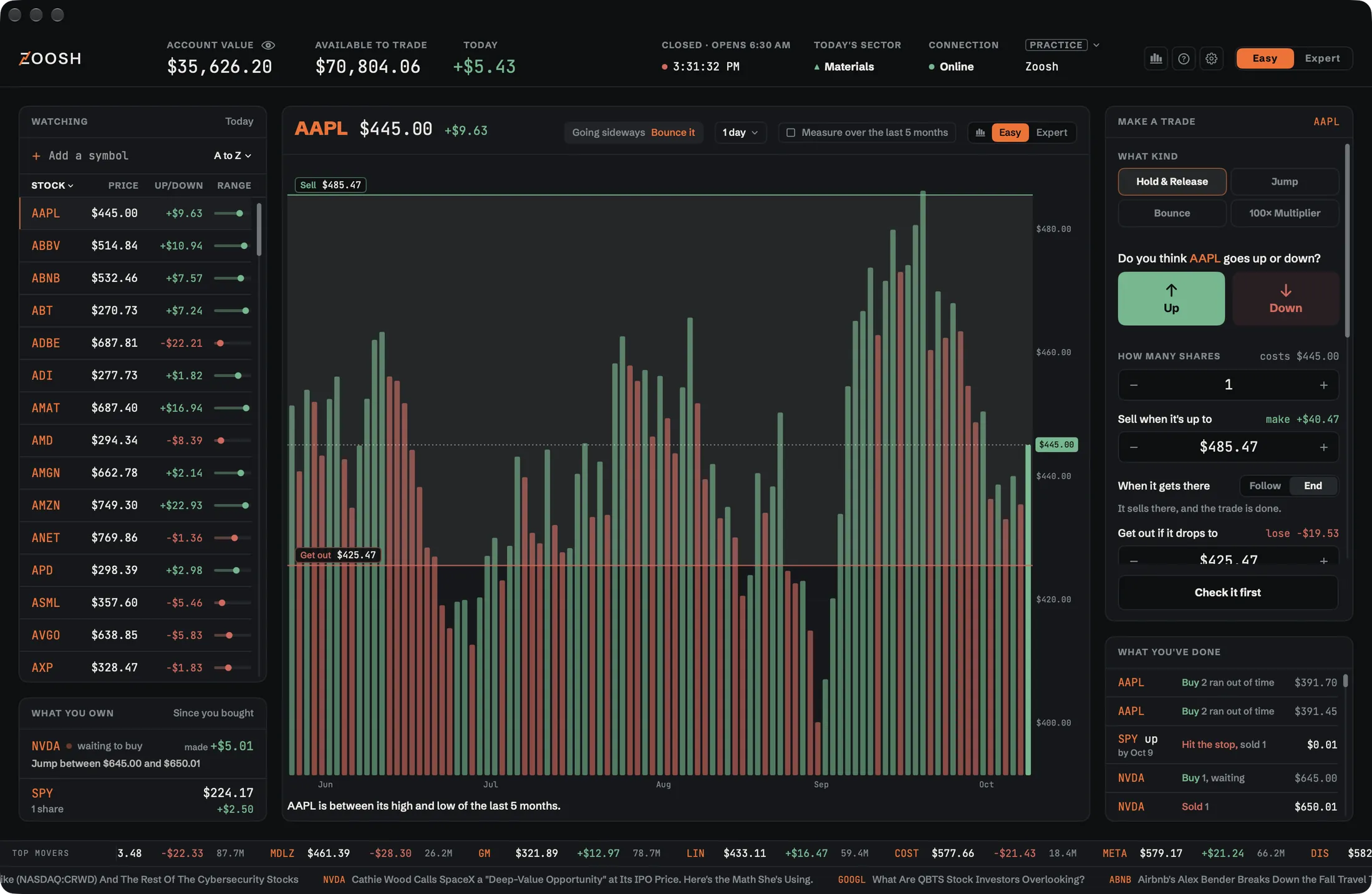
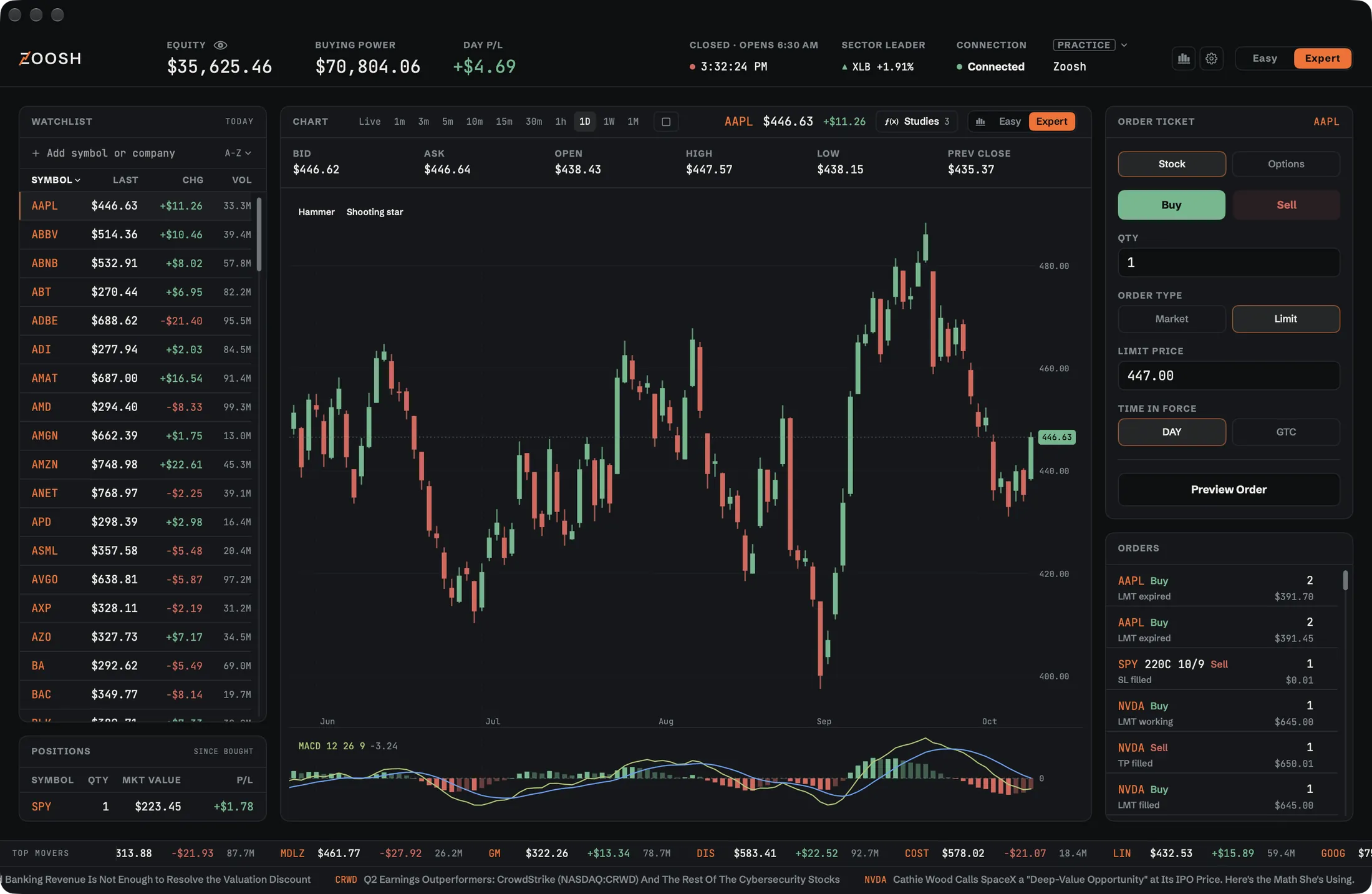
Zoosh puts your watchlist, the chart and the trade ticket on one screen. Easy mode says everything in plain words. Expert mode is the full ticket. Your money stays with your broker.
Easy. Account value, available to trade, today. Bars that stand at each close, and a ticket that asks which way you think it goes.Expert. Equity, buying power, day P/L. Candles with studies, and the full order ticket for stocks and options.
01What it is
One screen, from first look to sold.
Zoosh connects to your own broker account through the broker's official API. It shows what you watch, the chart and the ticket side by side, and it sends the orders you place. It never holds your money, and it never decides a trade for you.
Watch
Add stocks to your watchlist and click one to chart it. Each row shows its price, how far it moved and where it sits in the day's range.
Measure
Snap measures every row over the chart's period instead of just today, so the list and the chart tell the same story.
Trade
Buy and sell from the ticket. Your sell price and your stop go in with the trade, drawn on the chart as lines you can drag.
02Easy & Expert
Same figures, different words.
Easy says what each number means. Expert says it the way the pros do. Switching changes the whole screen, the chart too, and nothing about your account. Settings › View can switch off a mode or a chart you never use.
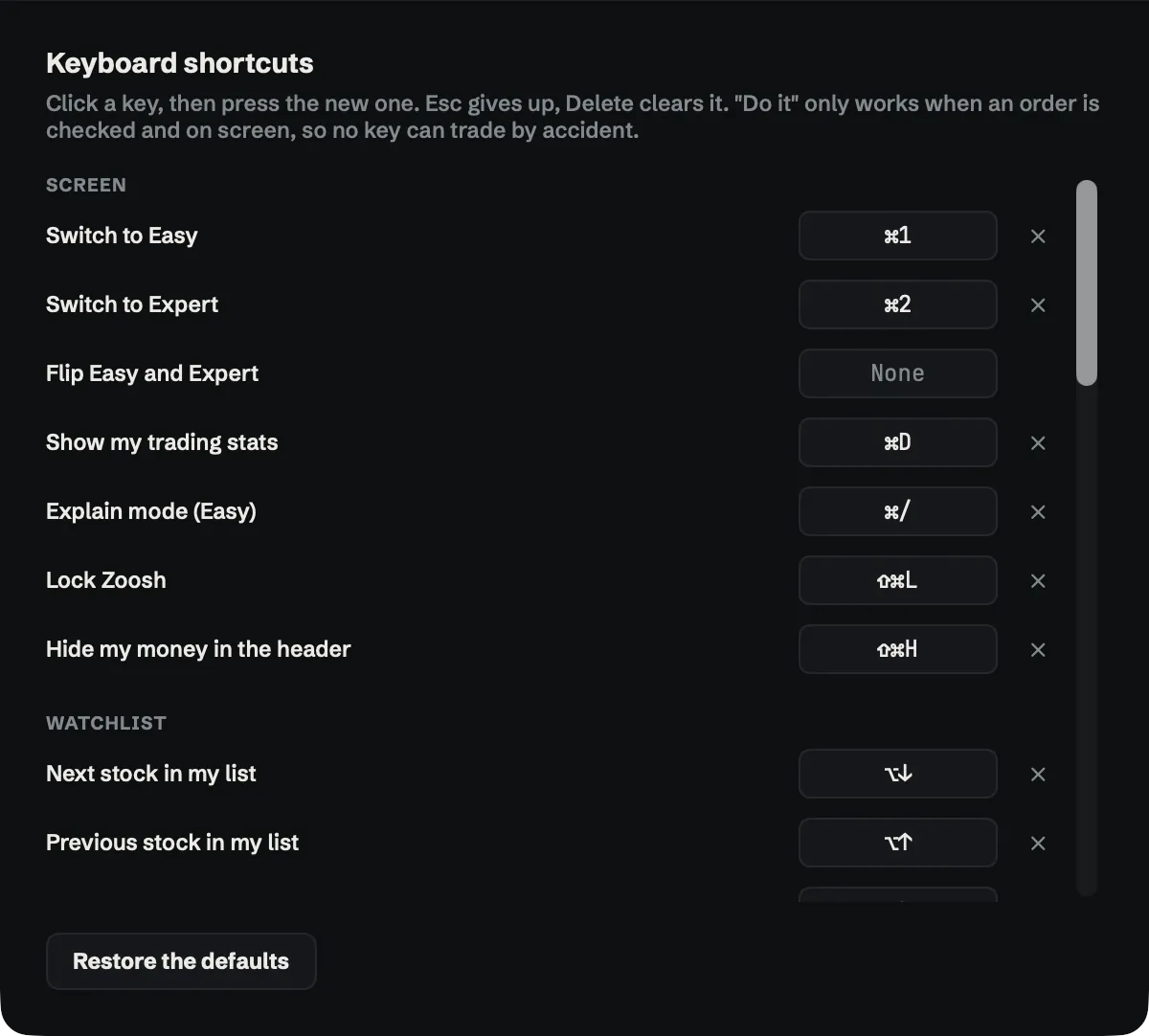
⌘1 and ⌘2 switch from anywhere in the app. In Easy, ⌘/ explains whatever you point at.
- Easy
- Expert
- Account value
- Equity
- Available to trade
- Buying Power
- Today
- Day P/L
- What you own
- Positions
- Stock
- Symbol
- Price now
- Last
- Buyers offer · Sellers want
- Bid · Ask
- Make a trade
- Order Ticket
- Only at my price
- Limit
- Until I cancel
- GTC
- By when · Has to beat
- Expiry · Strike
- Check it first · Do it
- Preview Order · Submit
03Trading
Four ways to trade.
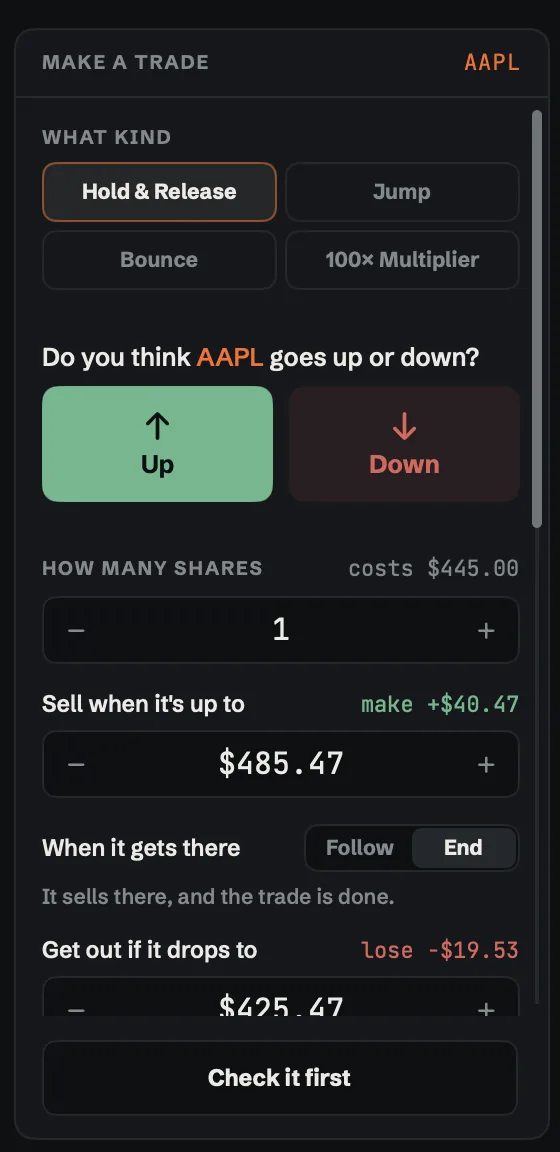
Easy offers four kinds of trade. Pick one and the ticket asks only what that kind needs, then draws its prices on the chart as lines you can drag. Expert has the full ticket instead: stocks and options, every order type. Scroll to walk through them.
Hold & Release
Buy shares now and sell them later. You set where it sells and where it gets out, and both are placed for you. Or let it keep going past your sell price.
Think it goes down instead? Down sells short: you sell shares you borrow and buy them back later.
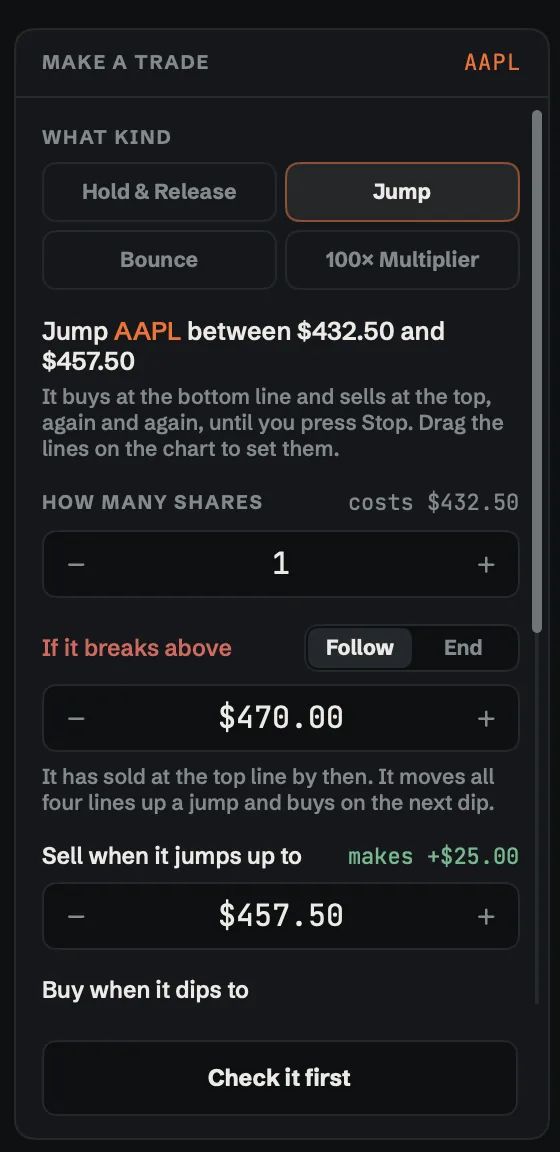
Jump
For a stock going sideways. Zoosh buys near the bottom of your range and sells near the top, over and over, until you stop it. It earns on the way up.
If the price breaks out, it ends or moves its lines up or down: you choose which, before it starts.
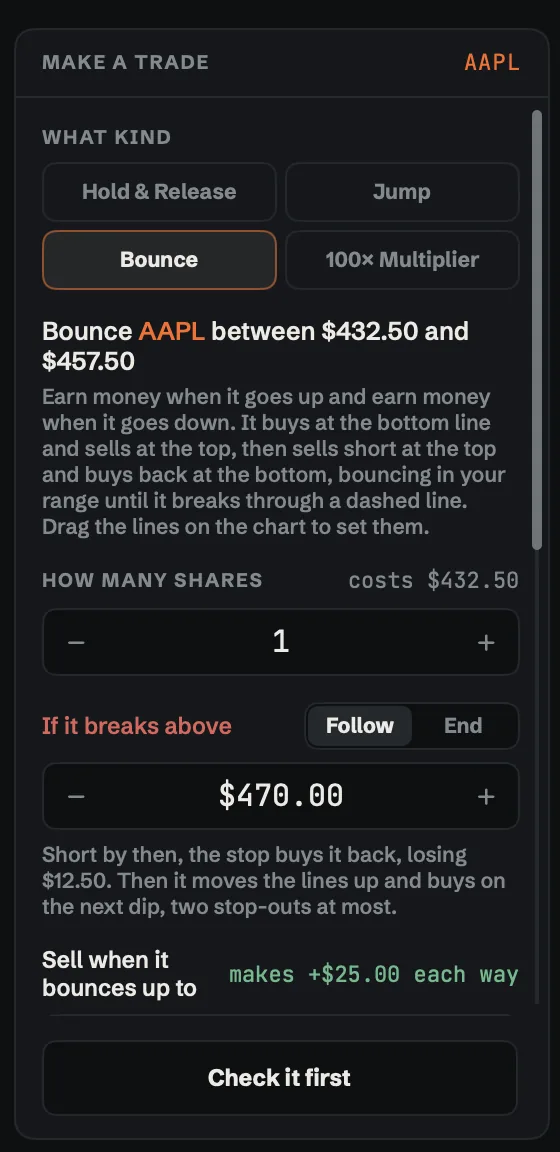
Bounce
Earn money when it goes up and earn money when it goes down. Zoosh buys at the bottom of your range and sells at the top, then sells short at the top and buys back at the bottom, bouncing up and down in your range until it breaks through the outer stop lines you set.
Selling short can lose more than you put in. The ticket shows what a stop-out would lose before you start, and Bounce won't run on a stock you already own.
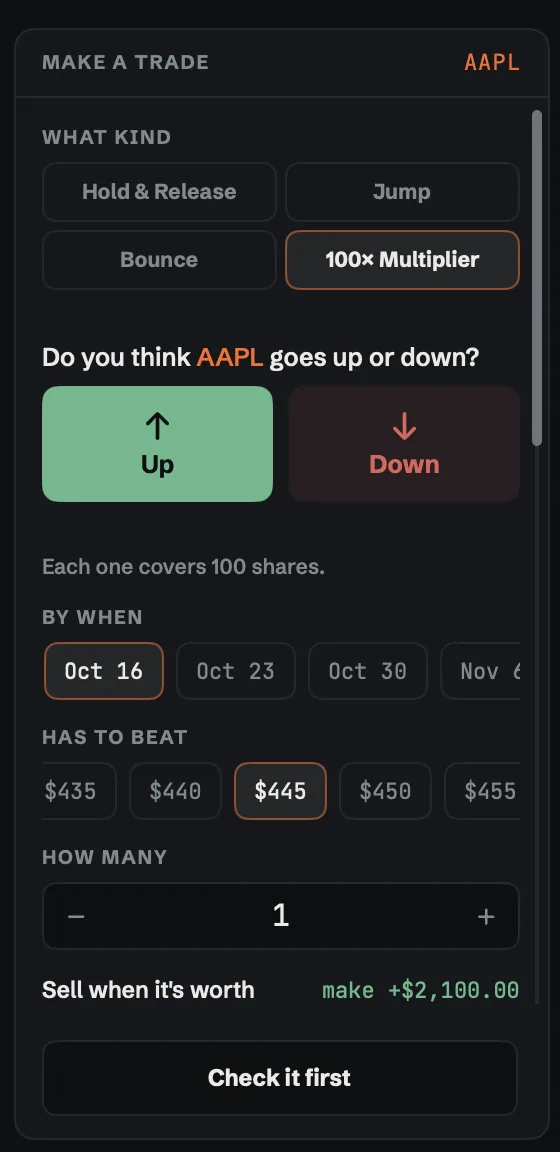
100× Multiplier
Costs a fraction of 100 shares but moves like 100 shares. It has a deadline: if the stock isn't past your price by then, it's worth nothing. You never end up owning the shares.
It is a stock option, in plain words. Zoosh sells it before the deadline if it is still open.
Every trade is one you set up and press Do it on. Jump and Bounce repeat the trades you set, at your prices and your size, until you stop them or a stop line is hit. Check it first shows exactly what will be sent, and nothing goes to your broker until you press Do it.
04Stats
Every trade you've made, added up.
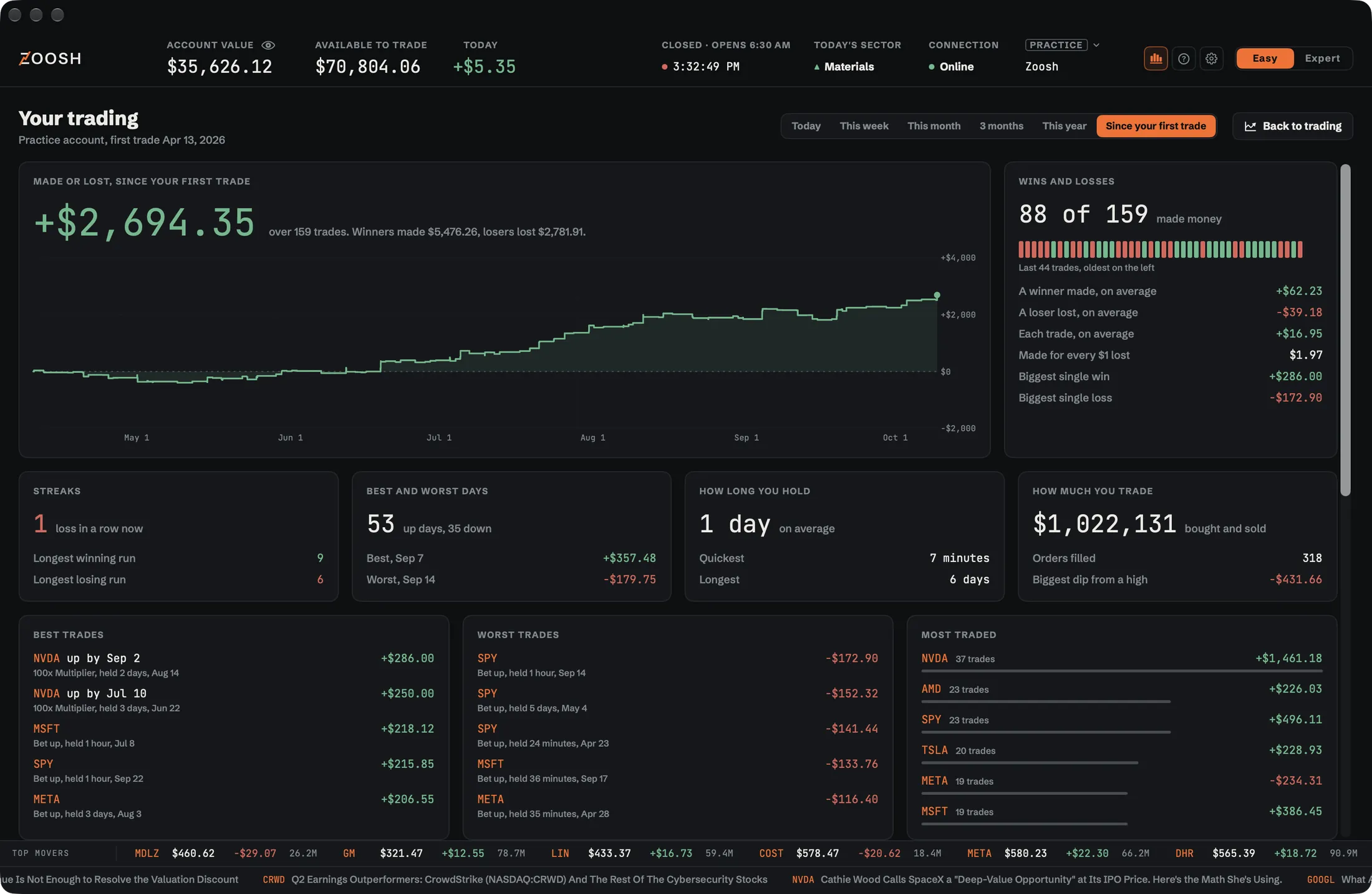
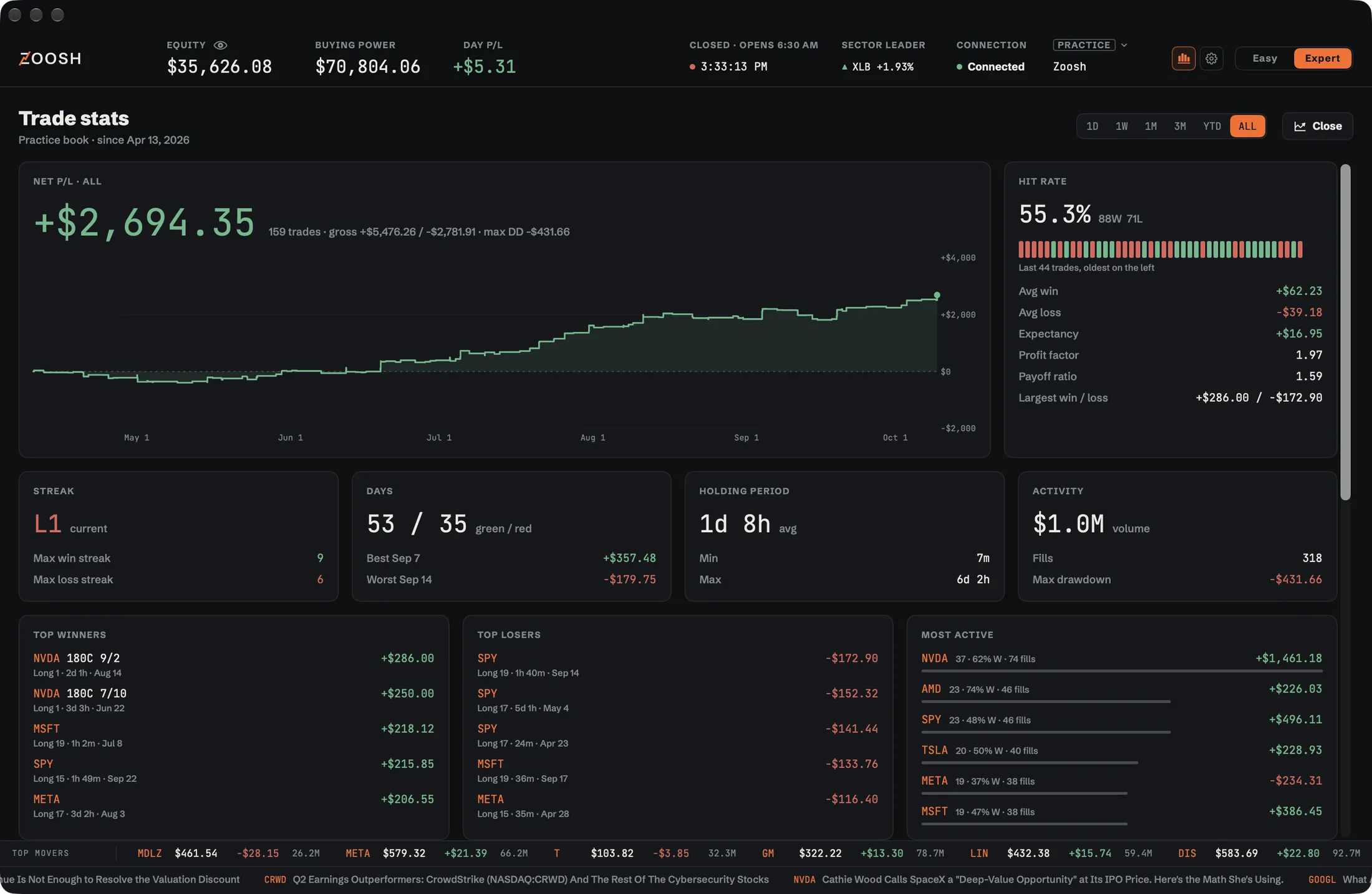
The stats button (⌘D) swaps the trading screen for your record: what you made or lost and the line of how it got there, since your first trade or over any stretch you pick. Right-click any stock in it to chart it. Easy says it in dollars and sentences; Expert gets the trader's figures.
An illustration: 88 made-up trading days that add up to the sample below. Point at a day; move or drag to turn it.
Sample trades on the Practice account, not real results.
Made or lost
The one big number, and the line of how it got there. Today, this week, this month, three months, this year or since your first trade.
Wins and losses
How many made money, the average win and loss, what you made for every $1 lost, the biggest single win and loss.
Streaks and days
The longest winning and losing runs, the best and worst days, up days against down days.
How long you hold
Your quickest trade, your longest, and the average. Expert adds the holding period to the minute.
Best, worst, most traded
Your top trades and your worst, and the stocks you trade most with what each made. Right-click one to chart it.
When you do best
Day by day on a calendar, by weekday and hour, by which way you bet and what you traded. Every fill, with a CSV export.
The same record in Easy and in Expert.
05The chart
Steer the chart by hand.
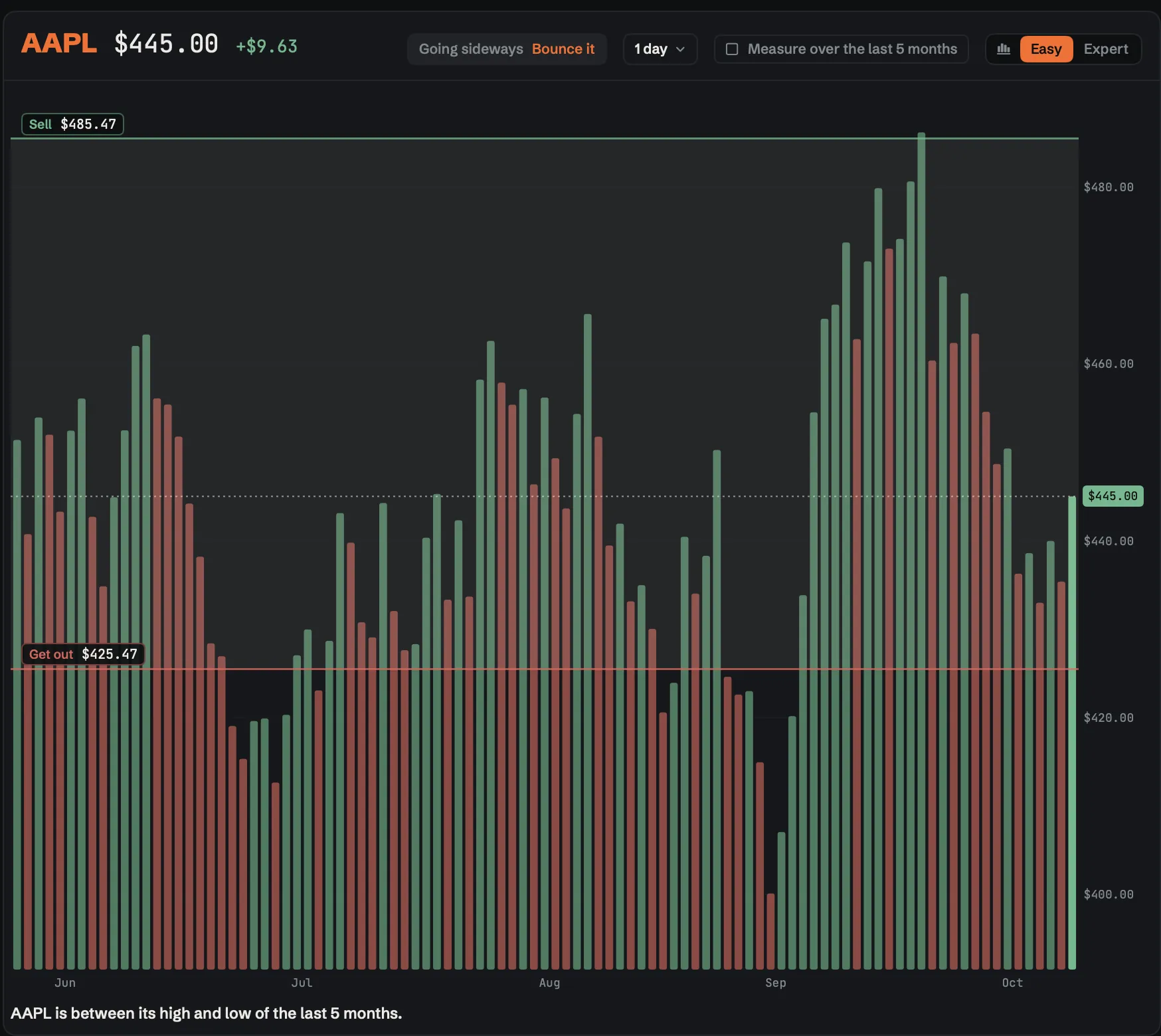
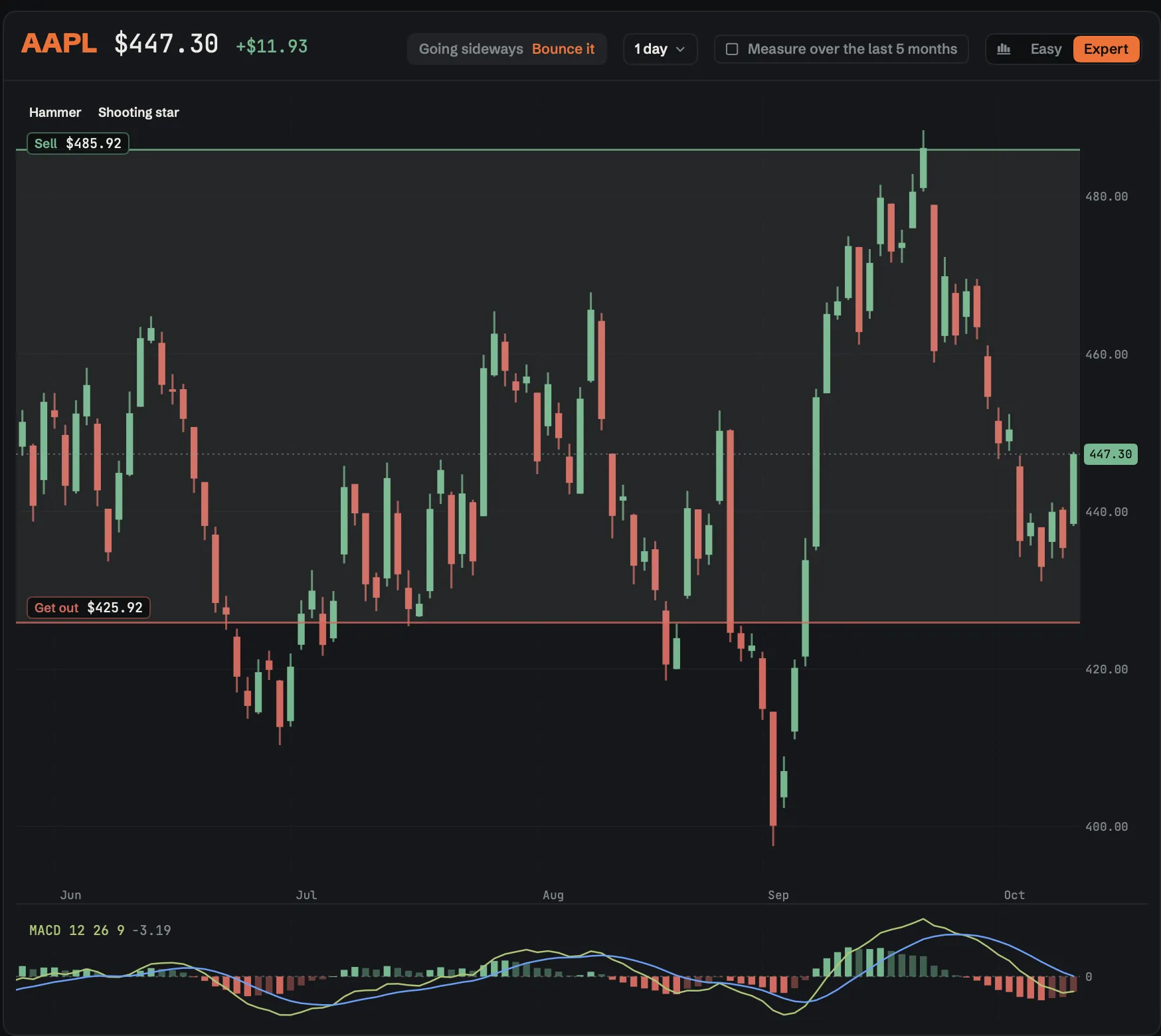
The Easy chart: one bar for each period, standing at its closing price.The Expert chart: candles, with 47 studies and patterns.
- Finger wheel
- Time: more bars or fewer, with today held at the right edge.
- Thumb wheel
- Price: a closer or a wider view. Shift with the finger wheel does the same.
- Over a scale
- Only one wheel? Point at the price scale and the finger wheel zooms the price; over the time scale, the time.
- Drag · ← → ↑ ↓
- Move back in time, toward now, or up and down the prices.
- Trackpad
- Pinch, or swipe up and down, for time. Swipe sideways to walk through it.
- On the chart
- Your sell price, your stop and Bounce's four lines are drawn on it. Drag one to change it.
06Settings
Make it yours.
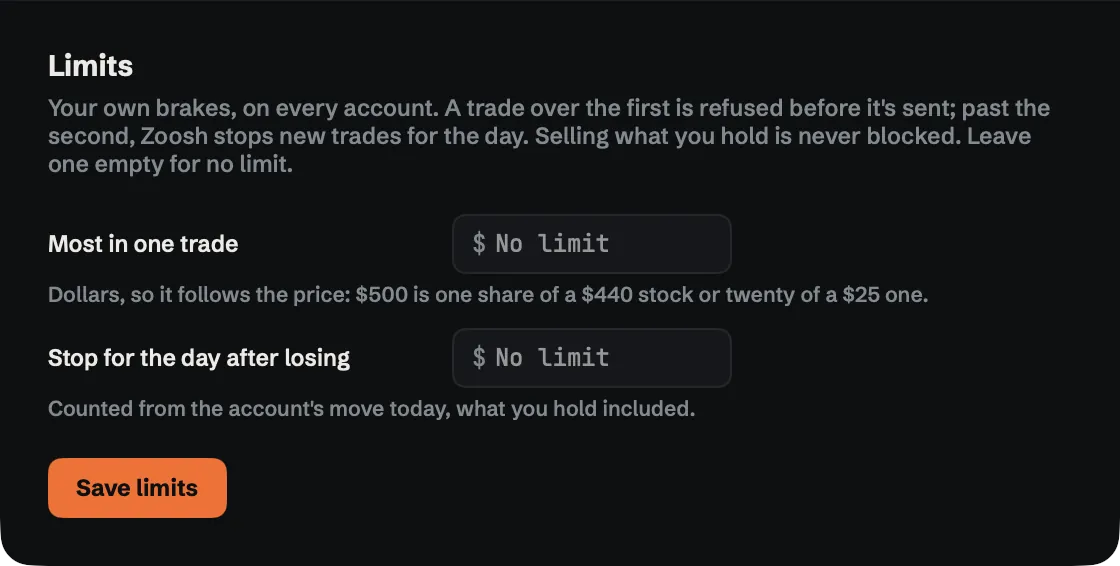
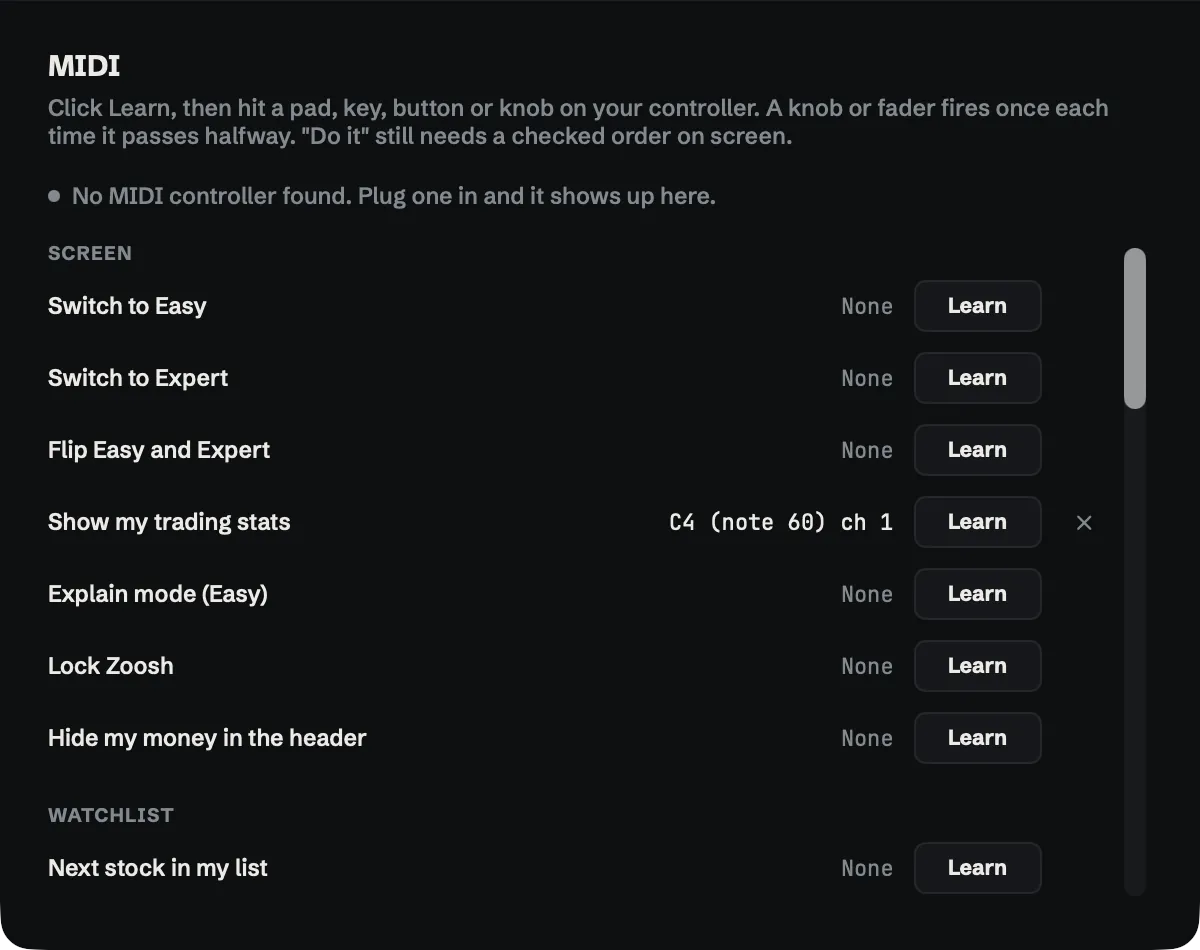
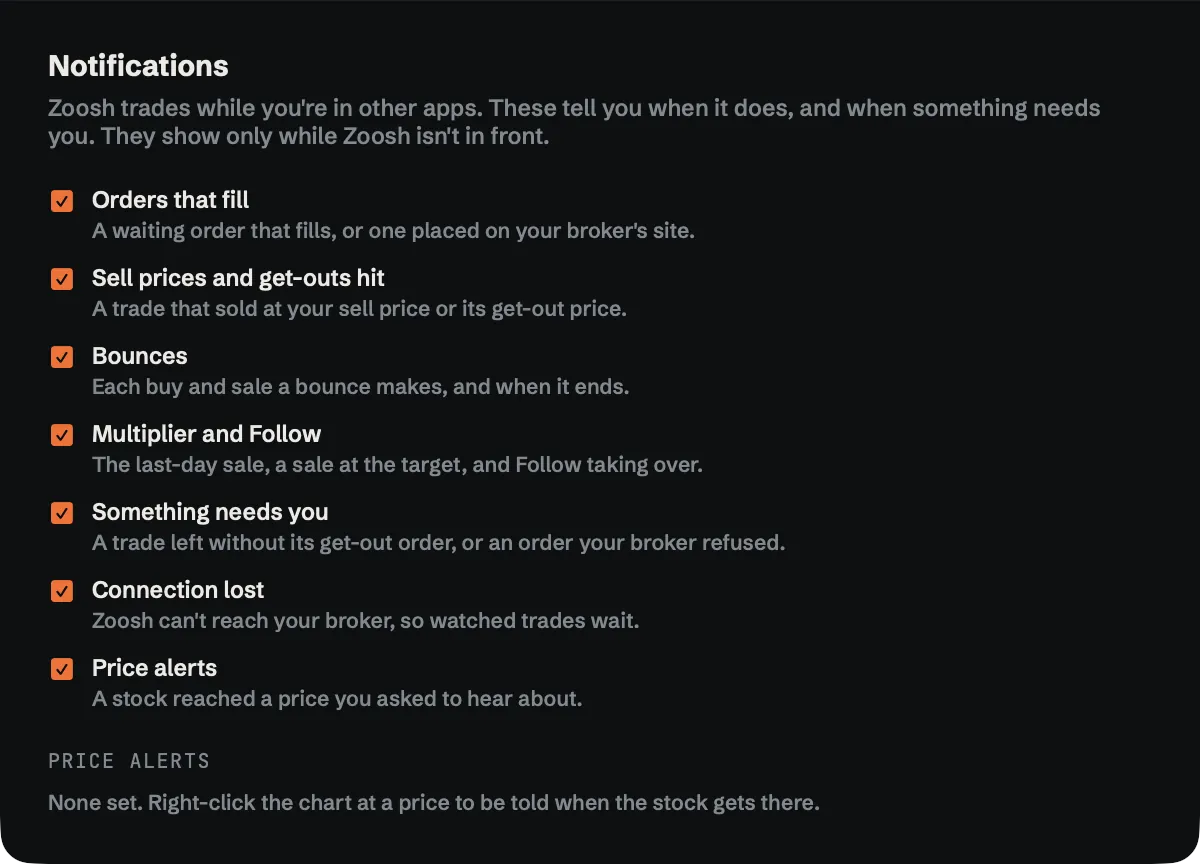
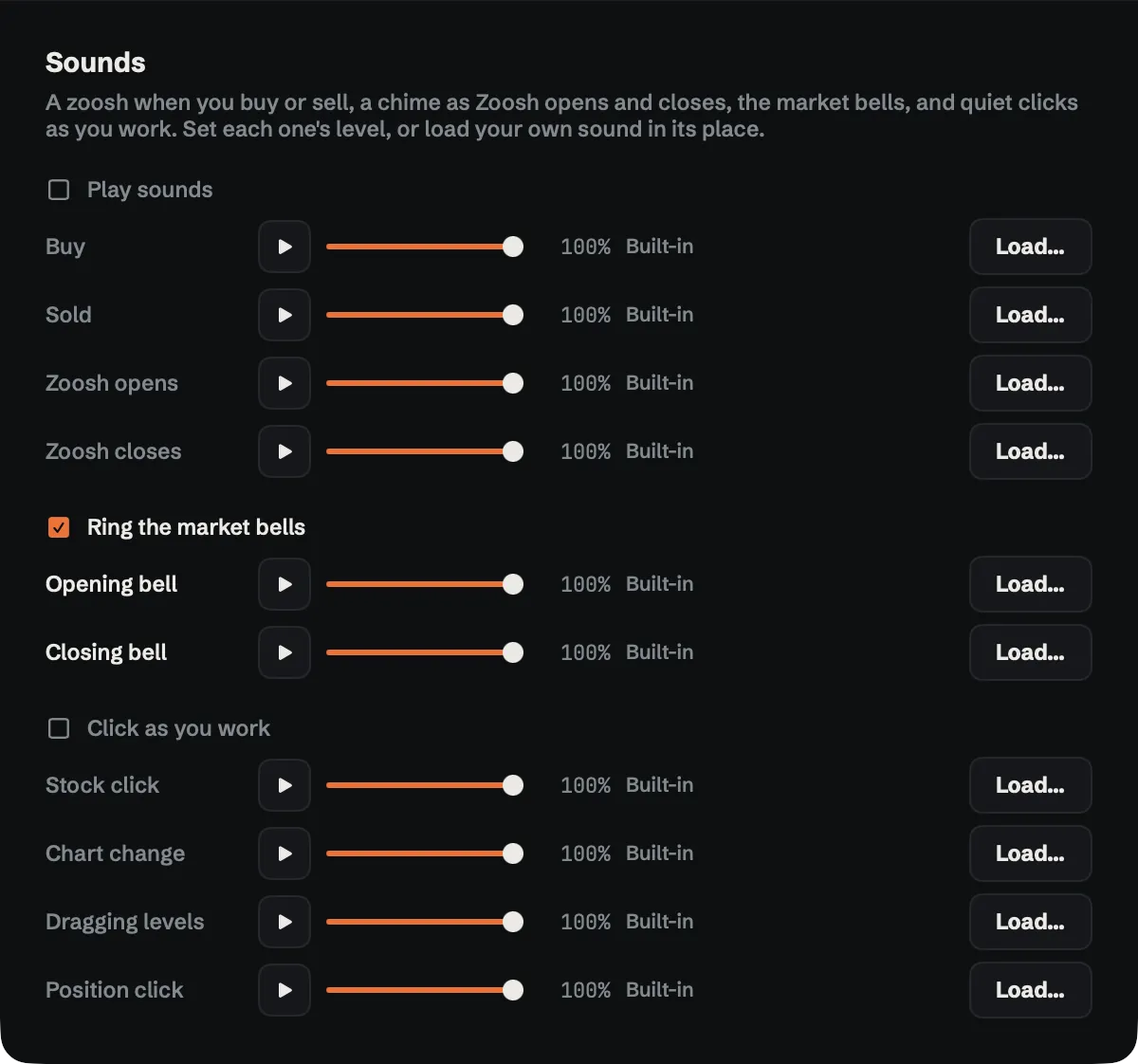
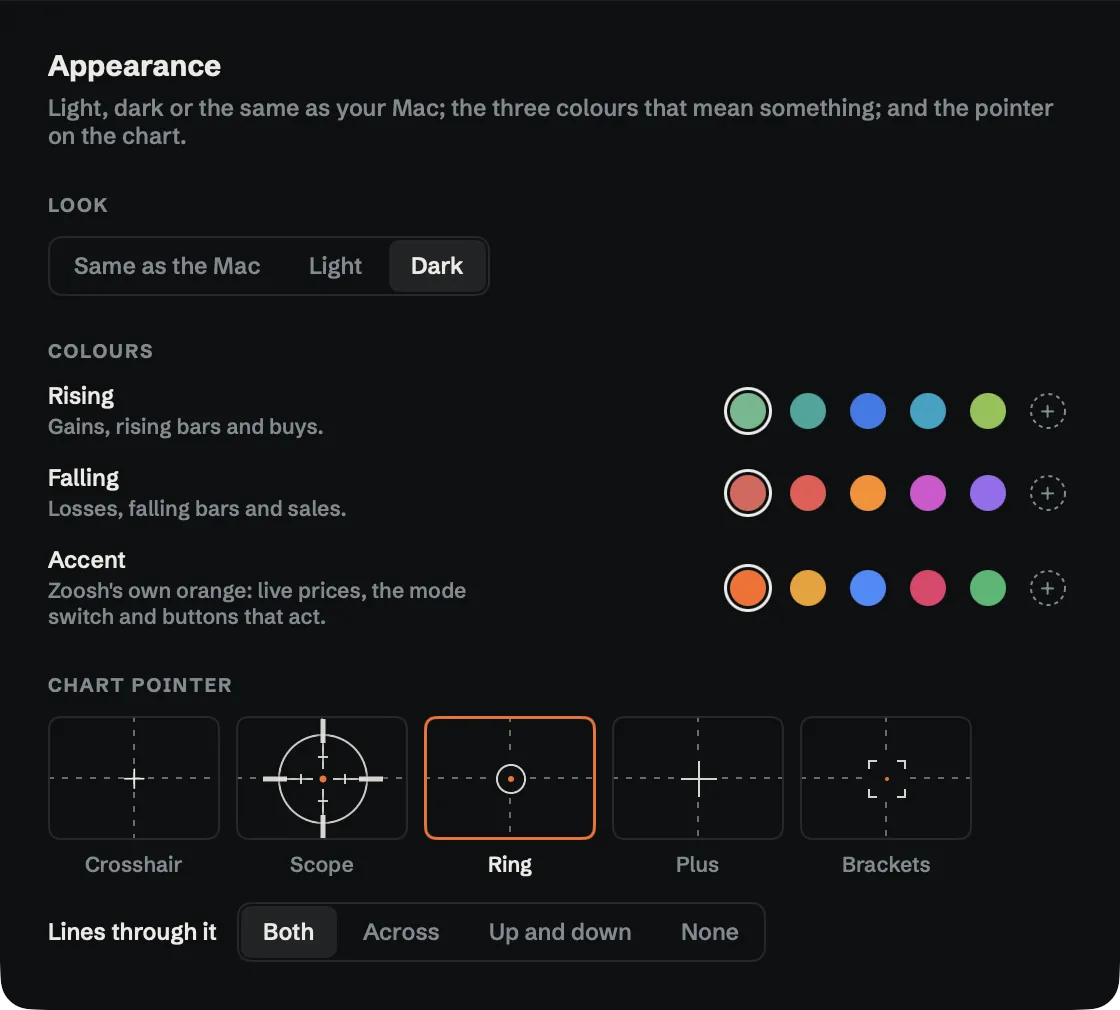
Nine panes: your brokerage, keyboard shortcuts, MIDI, limits, sounds, notifications, view, appearance and security. A few of them:
07Brokers
Your broker, in one window.
Zoosh talks to each broker through that broker's own official API. Adding one changes nothing on screen: what a broker can do decides what Zoosh shows, so a broker without options never shows the options ticket.
Drag to turn it.
- PracticeWorks today
Zoosh's own practice market. Made-up prices, $25,000 of pretend money, nothing leaves your Mac.
- AlpacaWorks today · Paper
Alpaca's pretend-money accounts: stocks, options and crypto at real market prices.
- Charles SchwabBuilt · Waiting on Schwab
Stocks and options, once Schwab approves Zoosh's developer access. Forex after that.
- E*TRADEZoosh 2.0
Stocks and options.
- Interactive BrokersZoosh 2.0
Stocks, options, futures and forex.
- tastytradeZoosh 2.0
Stocks, options, futures and crypto.
- WebullZoosh 2.0
Stocks, options and crypto.
- TradierZoosh 2.0
Stocks and options.
Planned brokers depend on each broker's API terms and approval. Real-money trading isn't switched on in Zoosh yet.
08Bots
Bring your own bot.
Connect a script you wrote, or an AI agent running in its own app, and it trades your paper account through Zoosh. You see every step it takes, and nothing it sends gets past the limits you give it.
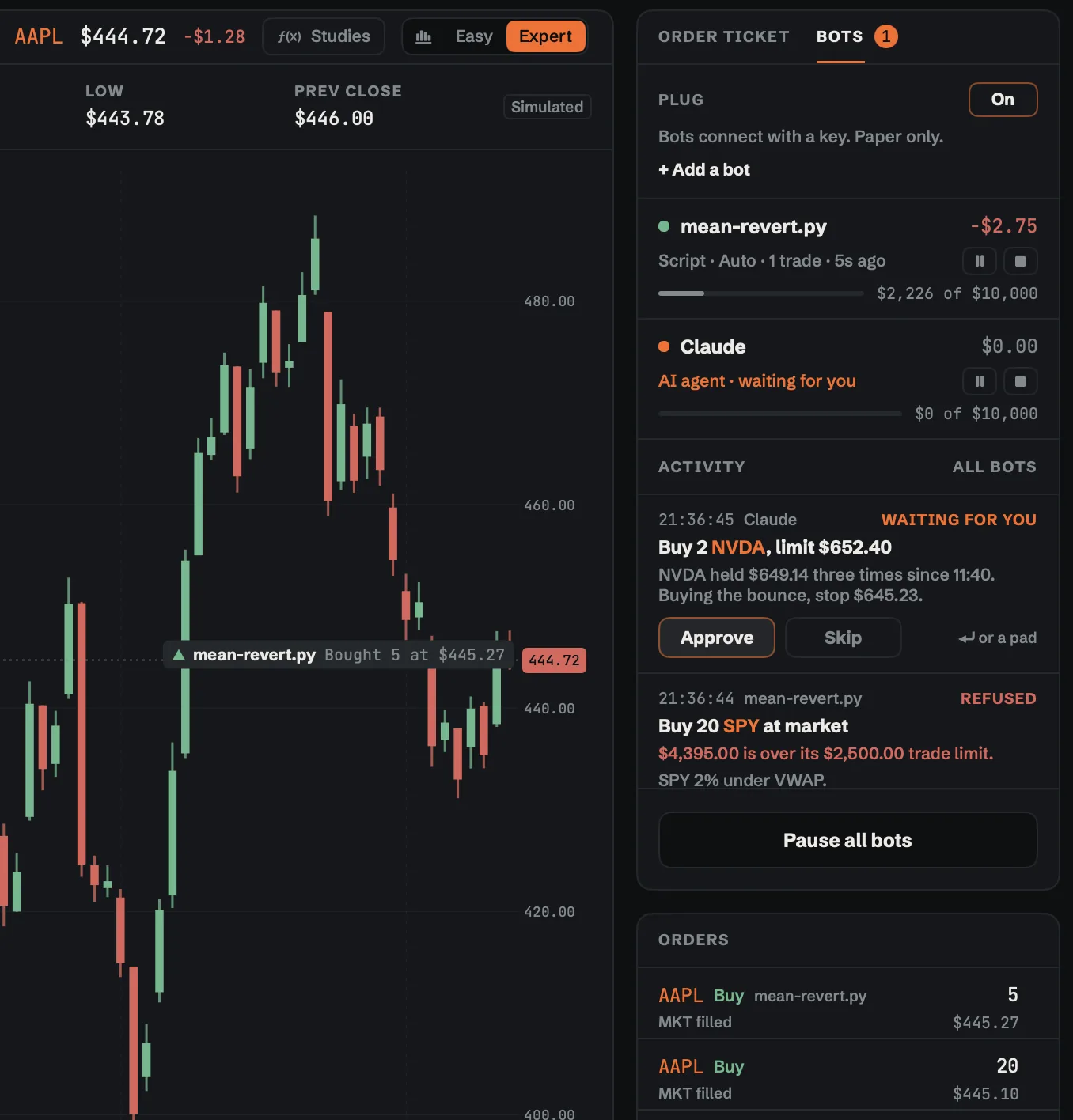
A script's buy, marked on the chart and named on its order. An AI agent's order, waiting for you. A trade over its limit, refused.
- A key each
- In Expert, open Bots and click Add a bot. Zoosh makes it a key. Scripts call a small local API; AI agents connect over MCP.
- Runs it for you
- Pick a Python file and press Start: Zoosh runs your script, hands it a new key each run and shows what it prints. While the market is open, Zoosh keeps the Mac from sleeping when idle. Or start from Zoosh's example.
- Its account
- Set each bot to Practice or one of your paper accounts. It trades there whatever is on screen, so bots can run side by side on different accounts.
- Its limits
- The most it can put in one trade and in one day, with your own Limits on top. Past them, the order is refused and the bot is told why.
- Ask first
- Each order waits for you: Approve or Skip with a click, Return or a pad. On Auto it goes straight to your broker.
- Follow along
- Every order, refusal and note in Activity, each fill marked on the chart, and the bot's name on its orders.
- Stop it
- Pause one bot, or stop it and cancel its open orders. Pause all bots, or Stop all.
- Paper only
- Practice and Alpaca paper accounts, stocks and ETFs: no shorts, options or coins. Bots connect from this Mac only, while Zoosh is open.
09Walkthrough
From first open to first trade.
10Safety
Start safe.
Zoosh starts on pretend money. Real money comes last, and only when you connect it.
Practice first
$25,000 of pretend money and made-up prices on your Mac. Nothing you do there reaches a real account.
Your limits
The most in one trade, and a day's loss that stops new trades until tomorrow. Set them in Settings › Limits.
Exits at your broker
Where your broker can hold them, your sell price and stop wait there, working even with Zoosh closed.
Honest about automation
Jump and Bounce place each next trade themselves, so they need Zoosh open, your Mac awake and you online. The tour and the terms say so before the first trade.
Locked when you're away
Esc, sleep or stepping away locks Zoosh. Touch ID or your Mac password opens it; there is no Zoosh password to steal.
Keys in the Keychain
Your broker sign-in stays in the macOS Keychain, never in a file and never on a server.
11Your data
Zoosh has no server.
Your account, settings and history stay on your Mac. The app talks straight to your broker. The privacy policy says exactly what leaves your Mac and where it goes.
- Balances, positions, orders, history, your watchlist and the Practice account are stored on your Mac. We never receive them.
- Orders and account requests go from your Mac to your broker, and quotes come back from your broker's data service. None of it passes through us.
- Headlines come from Yahoo Finance's public news feed, for the symbols you follow.
- A bot you connect can read your paper account's balance, positions, orders and prices. Where it sends them is up to the bot: an AI agent sends them to its AI provider. Zoosh asks before the first one connects.
- No analytics, no tracking, no crash reporting tools and no ads in the app. We never sell or share your information.
12For brokerages
What a brokerage asks, answered.
The seven questions a broker reviewing Zoosh's API access asks, in one place.
- 1What it does
-
Zoosh is a native Mac desktop app for self-directed individual traders, trading their own brokerage account. It has two modes over the same screen. Easy is for newer traders: plain-language questions (up or down, how many shares, where to sell, where to get out), whole shares only, every amount in dollars, and a sell price and a stop on every trade. Expert has candlestick charts in 11 intervals with 47 studies and patterns, the full order ticket (market, limit, stop, stop limit, day or GTC, stocks and options), positions and orders. In Expert a user can also connect bots of their own to a paper account (see 4).
Also: watchlists and symbol search, price alerts, Mac notifications, trade stats with a CSV export, a market heatmap, a lock with Touch ID, light and dark appearance.
- 2Website and walkthrough
-
This page. The walkthrough is a 1:17 video of the app in one take on its Practice account, in seven chapters: the first-launch tour, the terms, each kind of trade, both charts, Expert mode and the lock screen. Every screenshot on this page is a real Zoosh window.
- 3Who uses it
-
Individual self-directed traders on the Mac, each connecting their own account. Zoosh is not for advisers managing other people's accounts. Today it is a free public beta on pretend money only: its own Practice account and Alpaca paper accounts.
- 4Order entry
-
Yes. Every order on a real-money account is the user's own: each position starts with an order the user sets up, reviews in Check it first and confirms with Do it. Zoosh never chooses a symbol, a direction or a size, and has no signals or strategies of its own that generate trades.
- Each order carries the user's sell price and stop, sent with it as a bracket or OCO where the broker supports one. Where the broker can't hold an exit, Zoosh places it at the user's prices while it runs.
- Jump repeats the user's buy and sell between the user's prices, at the user's size, until the user stops it or a stop is hit. Bounce does the same and also sells short at the user's sell price and buys back at the user's buy price; it won't run on a stock already held and shows what a stop-out would lose first. Both run only while Zoosh is open.
- An option still held on its last trading day is sold from 10am New York time so it never turns into shares; the user is told this when buying.
- Bots, on paper accounts only. A user can connect a bot of their own, a script or an AI agent, which sends orders through Zoosh with a key Zoosh issues for it. A script can also be a Python file the user picks for Zoosh to start on the same Mac: it gets a new key each run and reaches Zoosh the same way. The user sets the most it can put in one trade and in one day, and chooses whether each of its orders waits for their approval. Zoosh holds every bot order to those limits and the user's own, refuses short sales, options and coins, and shows the user each order, refusal and note. Bots work only on the Practice account and Alpaca paper accounts, only while Zoosh is open and only from the same Mac. Zoosh refuses them on any real-money account.
- 5Data
-
Account data (balances, buying power, positions, orders and fills) to show the user their own account, manage their orders and exits, and keep their trade history. Market data: quotes, price history and option chains. All of it is shown only to the account owner on their own Mac. Nothing is shared with anyone or sent to us: Zoosh has no server, talks straight to the broker, and keeps its sign-in tokens in the macOS Keychain. The one exception is a bot the user connects to a paper account: it can read that account's balance, positions, orders and prices through Zoosh on the same Mac, and where it sends them is up to the bot. Zoosh tells the user so and asks before the first bot connects.
- 6Investment advice
-
Turbo Graffix is not a registered investment adviser or a broker-dealer, and Zoosh gives no investment advice, recommendations or signals.
- 7Company
-
Turbo Graffix, a sole proprietorship in Los Angeles, California. A U.S. business. Write to info@turbograffix.com.
13Questions
Questions.
Does Zoosh tell me what to buy?
No. Zoosh gives no investment advice, recommendations or signals. You choose the stock, the direction, the size and the prices. Its charts, studies and plain-word reads are information only. A bot you connect yourself chooses for you, on paper accounts only and within the limits you give it.
Does Zoosh hold my money?
Never. Your money and shares stay at your broker, in your account. Zoosh is software that shows your account and sends the orders you place, through your broker's official API.
What keeps working if I close Zoosh?
Orders already at your broker keep working there, including the sell price and stop it can hold for you. Jump and Bounce, bots, the Multiplier's sale before its deadline, and any exit your broker can't hold need Zoosh open, your Mac awake and you online.
Can I lose more than I put in?
Yes, when you sell short (Down, and Bounce's way down) or trade on margin. Options can lose everything you paid for them. The risk disclosure explains each one in plain words.
Does it do options and crypto?
Options, yes: in Expert, and in Easy as the 100× Multiplier. Coins, through Alpaca: bought now and sold later, so they pay only when the price goes up.
Can I connect my own bot or AI agent?
Yes, on paper accounts. In Expert, open Bots and click Add a bot: Zoosh makes a key for it, and your script or agent connects on this Mac through a small local API or MCP. Or pick a Python file and Zoosh runs it for you, with a new key each run. An AI agent runs in its own app on your own AI account; Zoosh holds no AI keys. You set the most it can put in one trade and in one day, and whether each of its orders waits for you.
What does it cost?
Nothing while it's in beta. If it has paid plans one day, the price and terms will be shown before you pay anything. Your broker's own fees are separate.
Does it work outside the US?
Yes. Zoosh runs on any Mac, anywhere, and keeps the market's own New York hours whatever your Mac's time zone. The Practice account needs no sign-up at all. Alpaca gives anyone a paper account when they sign up; its real-money accounts depend on the country you live in, so check with Alpaca. Zoosh trades U.S. stocks, options and coins, and its words are in English.
Windows, iPhone or the web?
Mac only, on macOS 14 or later, Apple silicon or Intel. It is built for a big screen, a mouse and a keyboard.
Get the beta.
Free, on pretend money only: Zoosh's Practice account and Alpaca paper accounts. Real money isn't switched on yet.
Zoosh 1.0 beta, build 36. 14 MB, for macOS 14 or later on Apple silicon or Intel. Signed and notarised by Apple. Open the zip and drag Zoosh into Applications. On build 6 or older? Download it once more: from build 7 on, Zoosh tells you when a new build is out and installs it when you say so.